Dual Dance Mode
Dual Dance, also called "attack-and-defense battle" or "in-room PK", is one of the most common competitive formats used inside a single live room.
If this is your first time configuring Dual Dance, we recommend following this order:
- Make sure you have fully understood Sticker Dance Quickstart
- Create a new preset, choose
Dual Dance, and confirm that all on-duty cast members have already been added to the current preset - Clarify the gift assignment rules first, then continue with the detailed setup
Multi PK
If you want multiple Cast members on stage at the same time for PK, please refer to the Multi PK mode.
INDEX
- PK Rule Settings: define attack/defense judgment and vote ownership
Operation surface: handles display settings, gift rules, and other core optionsRevival Settings: handles the revival mechanicCast Setting: handles member configurationEffect Scenes: handles full-screen effect scene settings
At the end, we will also add a few notes about live operation that are not part of the configuration itself.
PK Rule Settings
This is the first rule area you should settle for Dual Dance. In most cases, once these rules are decided, they are rarely changed again.
If you do not yet understand why these options exist
Please use the default preset settings first.
Judgment Mode
| Mode | Meaning | Best for |
|---|---|---|
Beneficial to defender |
A tie counts as a win for the defender | Recommended |
Beneficial to attacker |
A tie counts as a win for the attacker | Increases the chance of a successful challenge |
Allow for draw |
Allows a true tie; after a tie both sides continue into the next round | Use when you want more neutral rules and less system bias (not recommended) |
Assignment Mode
| Mode | Meaning | Best for |
|---|---|---|
Votes to score |
Each side scores based on its own votes | Recommended first choice and the easiest default to understand |
All to split |
All votes from the current round are added together and split evenly between both sides | Useful when you want to soften the gap between winning and losing and increase participation |
All to defense |
All votes from the current round go to the defender | A common format in some regions |
Operation surface
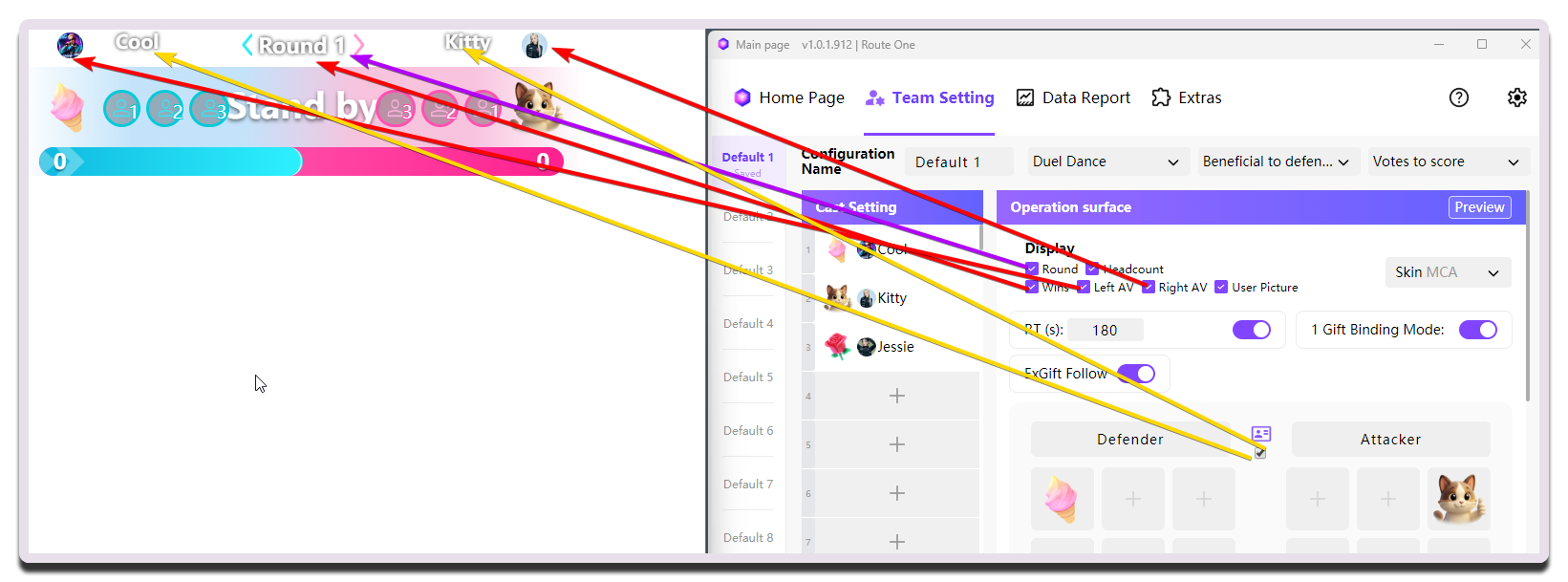
This is the main configuration area of Dual Dance. Most core functions are completed here.
Display Settings
| Setting | What it does | When to change it | Notes |
|---|---|---|---|
Round |
Decides whether the current round number is shown | Enable it if your live flow follows rounds strictly | - |
Headcount |
Shows the number of supporters on one side (viewers who sent counting gifts to that side) | Enable it when you want to emphasize crowd support | Usually left off |
Wins |
Shows the current Combo Count | Enable it when you use defender Combo Count or attacker Combo Count rules | - |
Left AV / Right AV |
Controls creator avatars on the left and right sides | Recommended to enable | If there are many avatars, check whether the widget becomes too crowded |
Defender |
Sets the defender-side name | Change it when you want to highlight the camp identity | Keep the name short so the widget can display it fully |
Attacker |
Sets the attacker-side name | Change it when you want to highlight the camp identity | Do not use the same name as Defender |
The checkbox on the nameplate between Defender and Attacker (shown by the yellow arrow below) |
Decides whether cast nicknames are used instead of the custom Defender and Attacker names |
- | - |
Skin |
Changes the appearance style of the Dual Dance widget | Try different styles as needed | Different skins show the same settings a little differently |
Feature Settings
| Setting | What it does | When to change it | Notes |
|---|---|---|---|
RT (s) |
Customizes the duration of each PK round | Adjust it to match your actual pacing | The countdown works only after the switch on the right is enabled |
1 Gift Binding Mode |
Toggles the 1 Gift Binding Mode mechanism | Consider turning it off only when you need a special purpose, such as joining a TikTok designated-gift activity | Recommended to enable together with gift follow |
ExGift Follow |
Toggles gift follow. MCAStar automatically switches the bound gift according to the current cast member on stage | Consider turning it off only when you need a special purpose, such as joining a TikTok designated-gift activity | Recommended to enable together with 1 Gift Binding Mode |
| Gift matrix for both camps | Sets camp gifts for each side | Manual selection is needed only when gift follow is not enabled | Each side needs at least 1 camp gift |
Camp Gift Selection Suggestions
If gift follow is not enabled and you set gifts manually, pay attention to the following:
- Try to use gifts with similar value on both sides
- Try to keep the number of gifts on both sides the same
- If you want the rules to stay simple and direct, prioritize
1 Gift Binding Mode
Revival Settings
For the revival mechanic, first decide whether you want to include it at all. If you are not sure yet, you can skip this part for now.
The basic idea of revival is this: after one creator on the defender side reaches a Combo Count of N, if that creator is defeated by the attacker side through a surprise attack or wheel battle, you can choose whether to enter the revival phase. If the defender side gains enough votes within the required time during that phase, the revival is considered successful and the creator can continue defending.
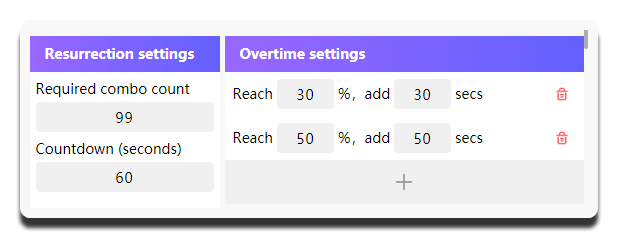
| Setting | What it does | When to change it | Notes |
|---|---|---|---|
Required combo count |
The minimum Combo Count required before the Revival Phase can be triggered |
If you do not want to enable revival, set it to 99 |
Unless your rules specifically need it, do not set it too low |
Countdown (seconds) |
The countdown duration for the Revival Phase |
- | - |
Time Extension Settings |
During the Revival Phase, once Reach % is achieved, the phase is automatically extended by add seconds |
- | You can add up to 3 extensions with +; if a single extension is too long, the revival phase may drag on too much |
The Revival Phase does not start automatically
The number of votes required for each revival can be different. In general, the higher the attacker-side score, the higher the revival threshold the MC / Host tends to set.
So during Dual Dance, when the revival condition is met, MCAStar asks the MC / Host whether to enter the Revival Phase.
Only then does it prompt for Votes Required for Revival, and confirm whether the Revival Phase should begin.
Cast Setting
Configure this according to the cast members who are actually on stage.
Effect Scenes
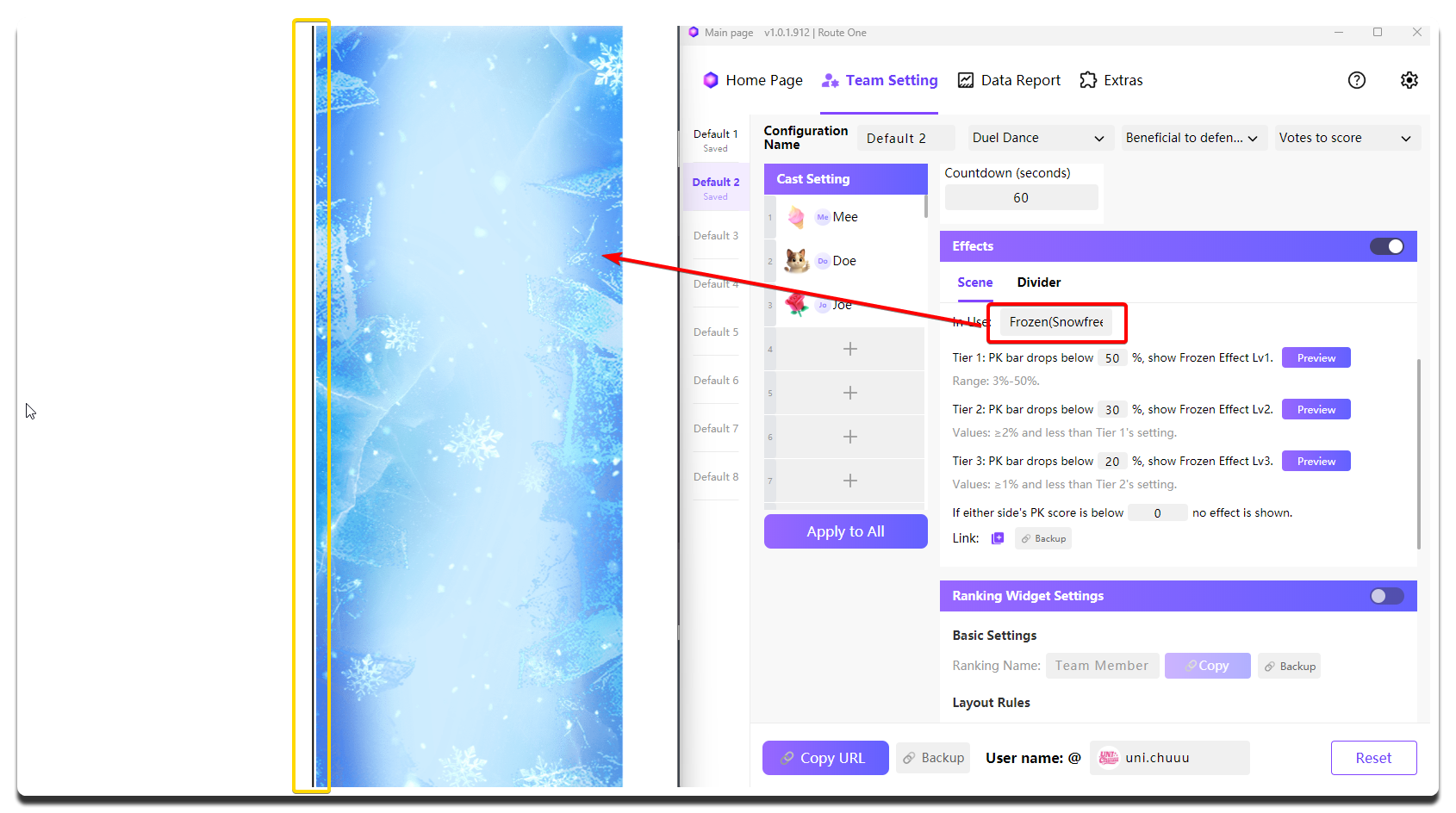
This section is for full-screen effect scenes, such as highly expressive PK effects like a "disadvantage freeze scene".
The center divider commonly seen in Dual Dance is also configured here.
These settings take effect only after you turn on the switch in the top-right corner.
Full-screen effect scene (Scene):
Divider (Divider):
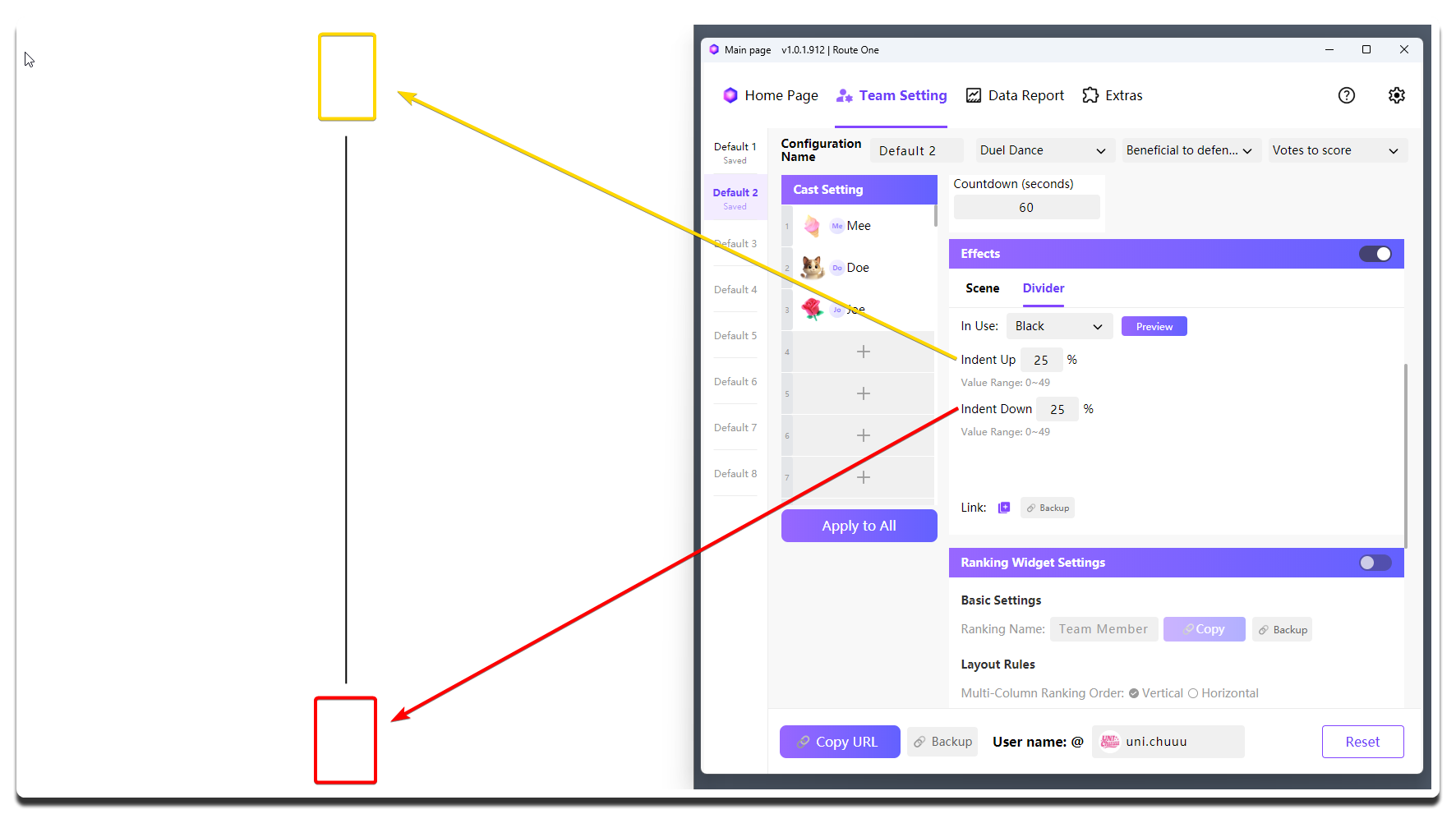
| Setting | What it does | When to change it | Notes |
|---|---|---|---|
Scene |
Chooses the full-screen effect scene style (after choosing a style, click Preview below to preview it immediately) |
- | Strongly recommended |
Tier N |
Adjusts the trigger threshold for each effect tier | Use it when you want different score gaps to produce different visual intensity levels | Different effect scene styles support different numbers of tiers |
Divider |
Chooses the divider color | - | Match it with the overall color tone of the live room |
Indent Up / Indent Down |
Adjusts the top and bottom indentation of the divider | Use it when you want the divider to be shorter, as shown above, so it does not block other widgets | Usually requires repeated adjustment together with the actual broadcast layout |
Operations in the broadcast tool
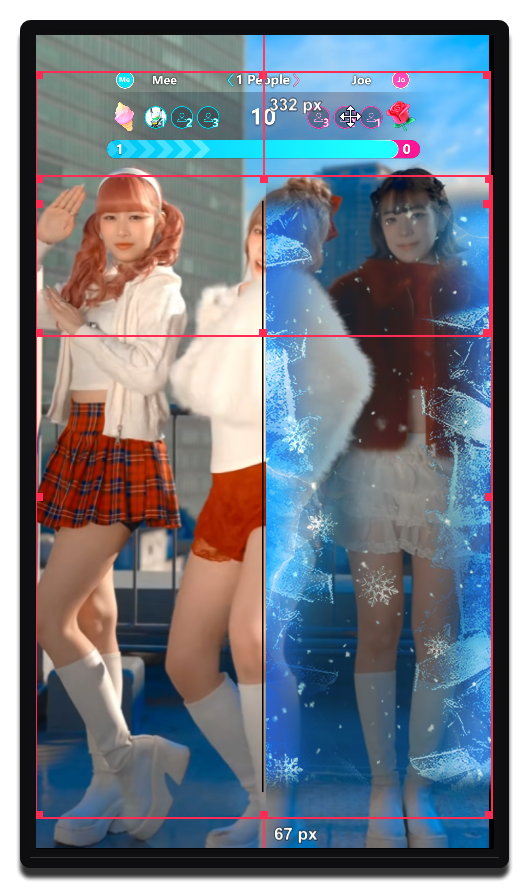
You need to copy the standalone URL of the full-screen effect scene and load it separately into the broadcast tool.
In other words, in Dual Dance, if you want to show both the Dual Dance widget and the full-screen effect scene, you need to load two widgets in the broadcast tool.
As shown below, Live Studio loads two overlapping widgets at the same time. The upper one is the Dual Dance widget, and the lower one, which includes the black divider in the middle, is the full-screen effect scene widget.
This design provides enough flexibility for you to adjust the presentation based on the actual live room setup.
Live Operation Notes
-
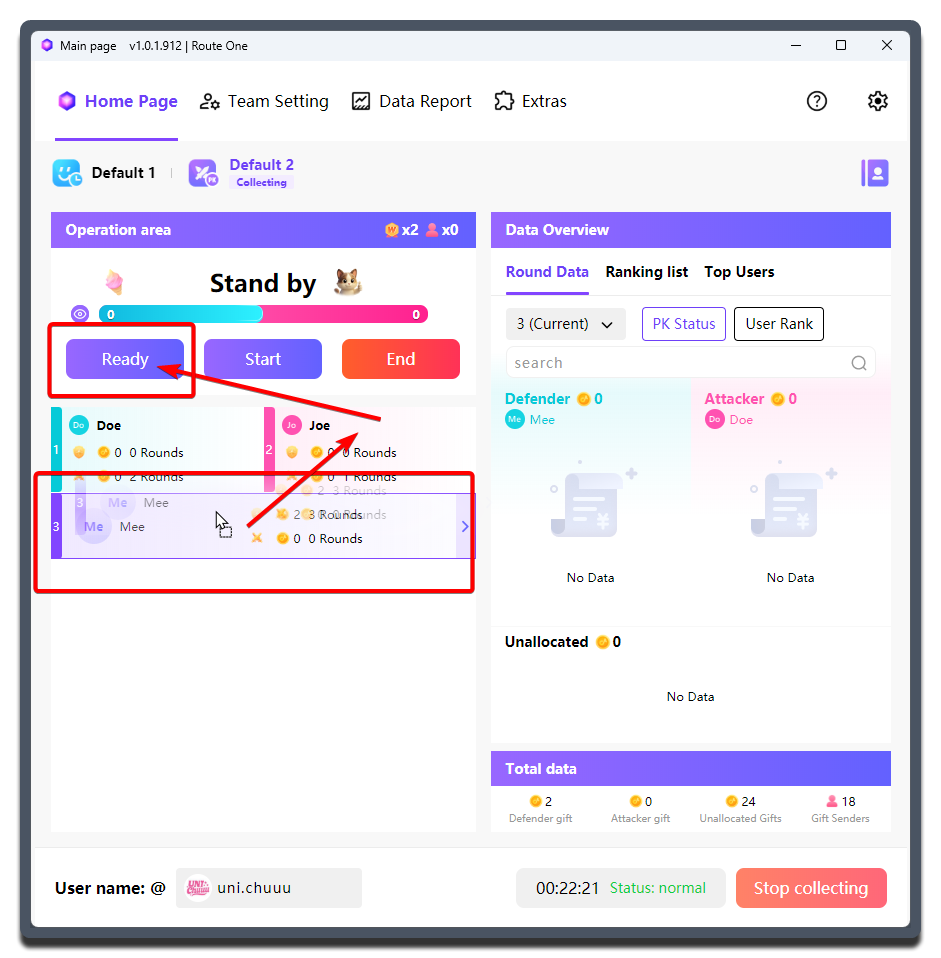
Before the PK starts, the MC / Host can manually drag to sort the cast order.
-
After confirming the order, it is recommended to click
Readyso all viewers can see which two cast members will begin the PK. -
Then click
Startto officially begin the PK. ClickingStartdirectly also works, butReady->Startusually gives viewers a better experience. -
MCAStar automatically rotates according to the actual result:
- Defender wins: the attacker side changes member in order
- Attacker wins: the attacker moves into the defender position, and the original defender side changes member in order
-
After all cast members have taken the stage, you can click
Endto finish the current round of PK. After that, repeat more rounds as needed.
Temporary adjustment
During the livestream, you can still manually adjust the appearance order temporarily.
If you make manual order changes during the livestream, Combo Count will no longer continue.