Profile Border
Profile Border is a display widget that quickly generates a combination of Avatar + Border.
It supports:
- Member avatars
- Audience avatars
- Direct image upload
Unlike gameplay modes, the Profile Border additional component does not handle voting or settlement. Its only job is to generate a stylish profile border, which you can place anywhere in your live layout through your streaming tool.
Setting Details
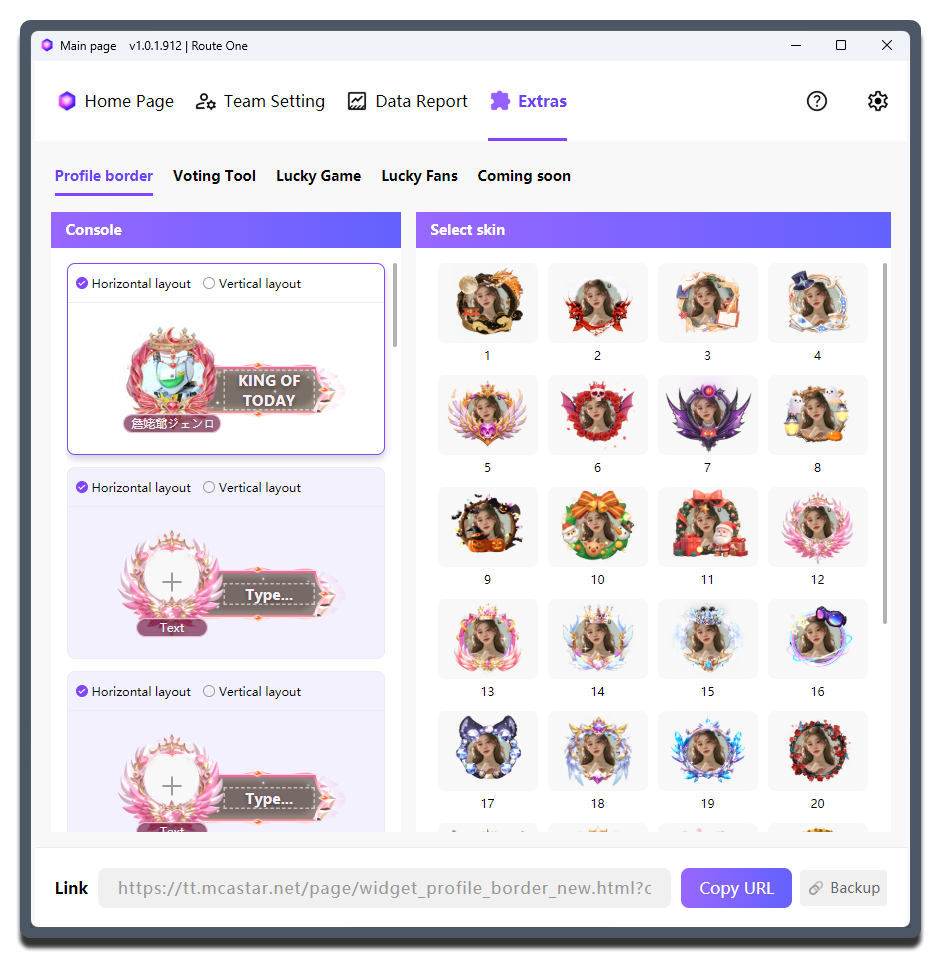
| Setting | What it does | When to change it | Notes |
|---|---|---|---|
Profile Border Workspace |
Manages and edits multiple profile border cards | Use it when one live session needs multiple members, different ranking positions, or several presentation versions | Select the target card first, then edit the avatar and text so you do not change the wrong card |
Horizontal / Vertical |
Changes the layout of the avatar and the info bar | - | - |
Avatar Selection (click the + in the center of the border) |
Opens the Recommended and History tabs for choosing viewer or creator avatars, and also supports direct image upload |
- | Recommended prioritizes avatars from the current round, recent use, and the team avatar pool |
Text / main text bar |
Fills in the main display text next to the avatar | Good for content that viewers can understand at a glance, such as TOP1, Leader, or WIN |
You can press Enter to insert a line break |
Choose Skin |
Switches the appearance of the border for the current card | Adjust it when you want a consistent visual style for the whole session, or different skins for different member identities | After switching skins, check the avatar crop and text length again |
Copy URL |
Copies the current widget link | - | It is recommended to copy it again after each change |
Using it in your streaming tool
You need to copy the standalone link for the currently selected Profile Border widget and load it into your streaming tool.
Each Profile Border widget needs to be copied separately. This design gives you enough flexibility to adjust the layout based on the actual live room setup.
Blank template
If you only want to show the avatar itself without an extra decorative frame, choose the blank template and keep or leave the text fields empty as needed.