Basic Guide
If this is your first time using MCAStar, read this guide before you begin.
Multilingual support
We serve TikTok Group-Live MCNs around the world, so MCAStar itself, the Admin Console, and this documentation all support multiple languages. MCAStar currently supports 9 languages based on the regions where TikTok Group-Live MCNs are most active: English, 简体中文, Tiếng Việt, แบบไทย, 日本語, Bahasa Indonesia, 한국어, Русский, and Español (LA).
Some translations are AI-assisted, so they may not always be perfect. If you notice any issues, please contact us using the contact details available in the Admin Console. We are happy to help and to correct any translation issues based on your feedback.
Before You Decide to Purchase
System Requirements
These requirements are not based only on MCAStar itself. They are recommended PC specifications for broadcasting, based on the current operating conditions of TikTok Group-Live worldwide:
- Windows 10 or Windows 11
- Intel i5-12500
- 16 GB RAM
- Nvidia RTX 3070
You do not need to prepare a dedicated PC just for MCAStar. We strongly recommend installing MCAStar directly on the same PC where you use Live Studio or OBS.
Purchase
Licensing
MCAStar uses a subscription-based licensing model. We offer multiple subscription options, including 30-day, 90-day, 180-day, and 365-day plans.
MCAStar is licensed per terminal device (PC device). One license can activate only one device at a time, meaning one PC. During the validity period of your license, you can transfer that license to a new device, so you do not need to worry if your device is damaged, key hardware is replaced, or the operating system must be reinstalled.
The license period starts only from the first activation. That means you can purchase licenses in advance for an upcoming expansion of your business, and the countdown will not begin until the license is actually used.
How to Purchase
We do not currently offer automatic recurring billing, and we will never send you a bill without your authorization.
Please register an account through the Admin Console and complete your purchase there directly. All payments are processed securely through Stripe. We do not and cannot obtain your confidential banking or credit card information outside of Stripe.
- Admin Console - MCA CMS
If your company is incorporated in Japan
You can contact us directly. We can provide Japanese-format billing documents and a domestic bank transfer payment option within Japan.
Download
Security warning
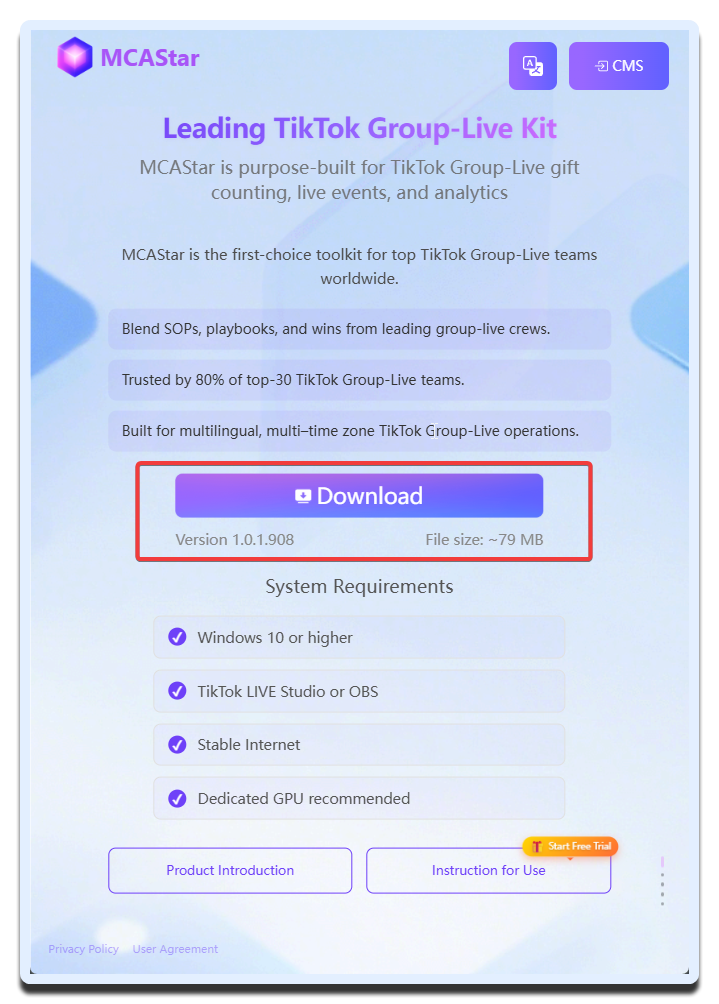
Always download MCAStar from the official website. Download links from third parties may contain malware or viruses.
- Download MCAStar - MCAStar
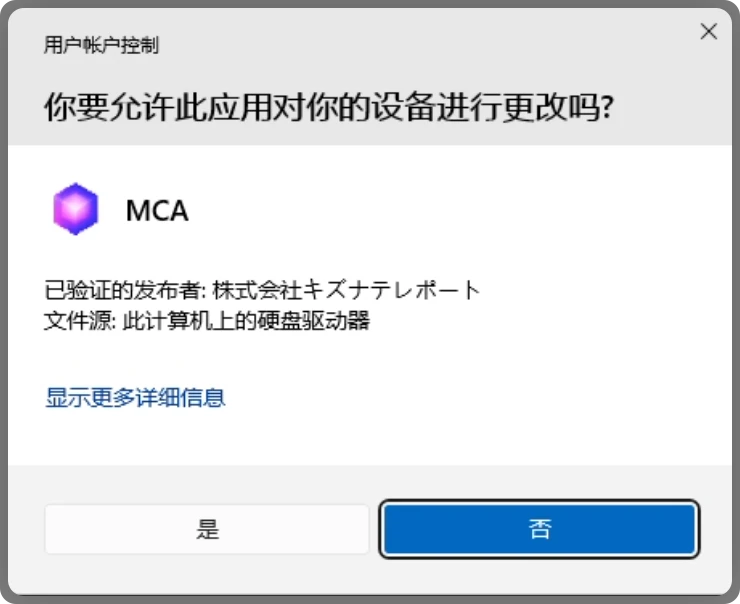
All official releases are signed by "Kizuna-Teleport Co., Ltd."
Activation
Get Your Activation Code
If you have already received your activation code, you can skip this step.
Visit the Admin Console and retrieve your activation code from User Management - Activation code.
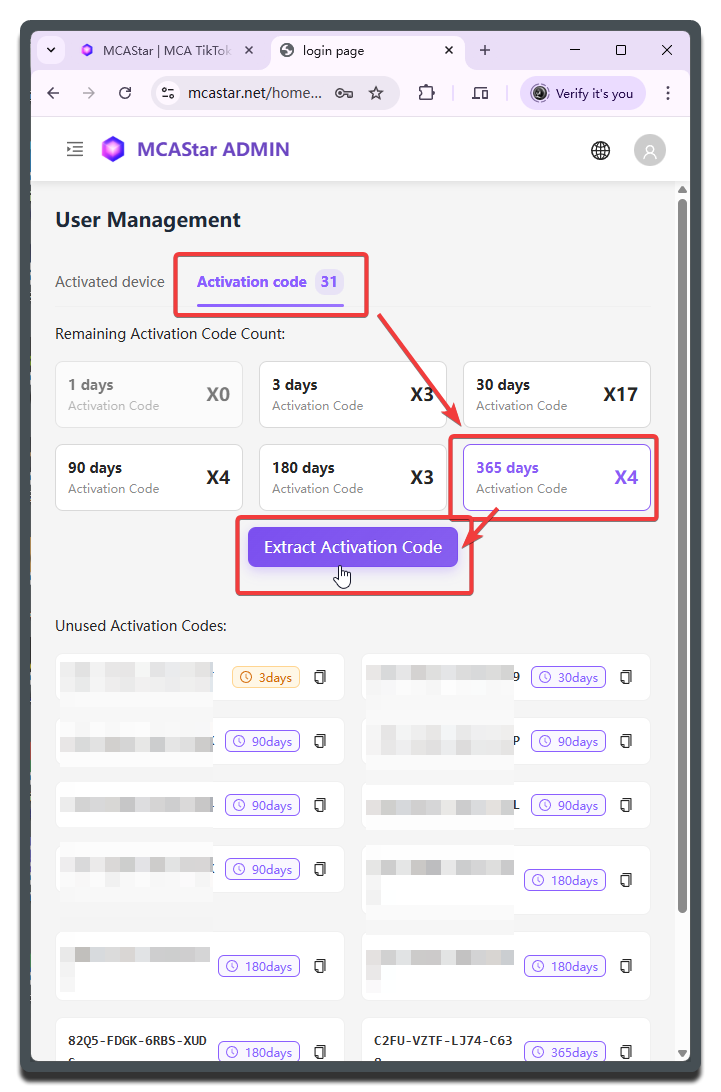
No activation code available?
Activation codes appear in the Activation code section only after a purchase has been completed.
If you purchased by domestic bank transfer in Japan, please contact us after the transfer is completed to receive your activation code.
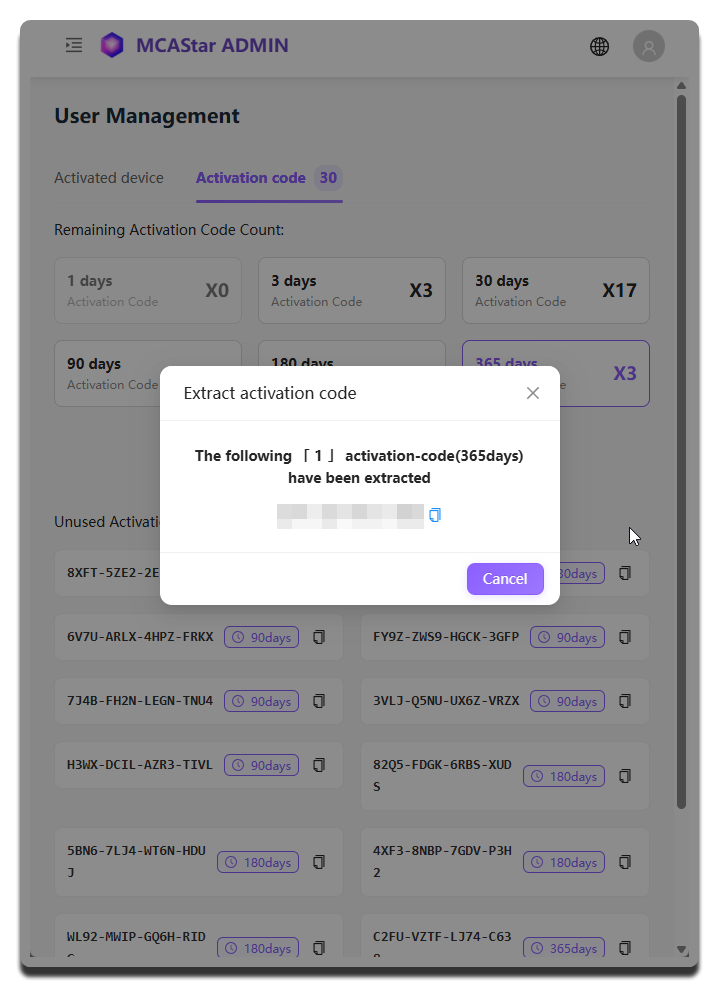
After locating the activation code you want, click the Extract button to retrieve it.
Activate Your Device
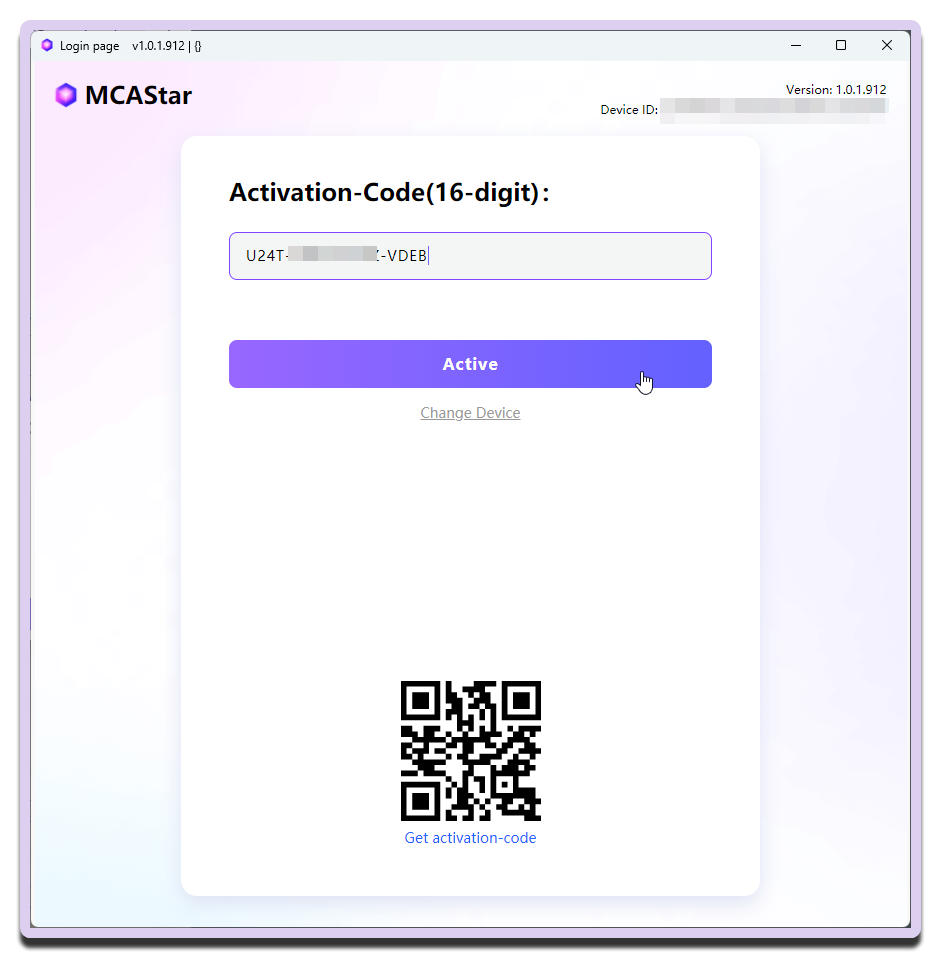
After installing MCAStar on Windows, the activation and login screen will open automatically the first time you launch the app. Follow the instructions shown on screen.
We strongly recommend naming the device with a format like Studio Name - Room Name so it is easy to identify later.
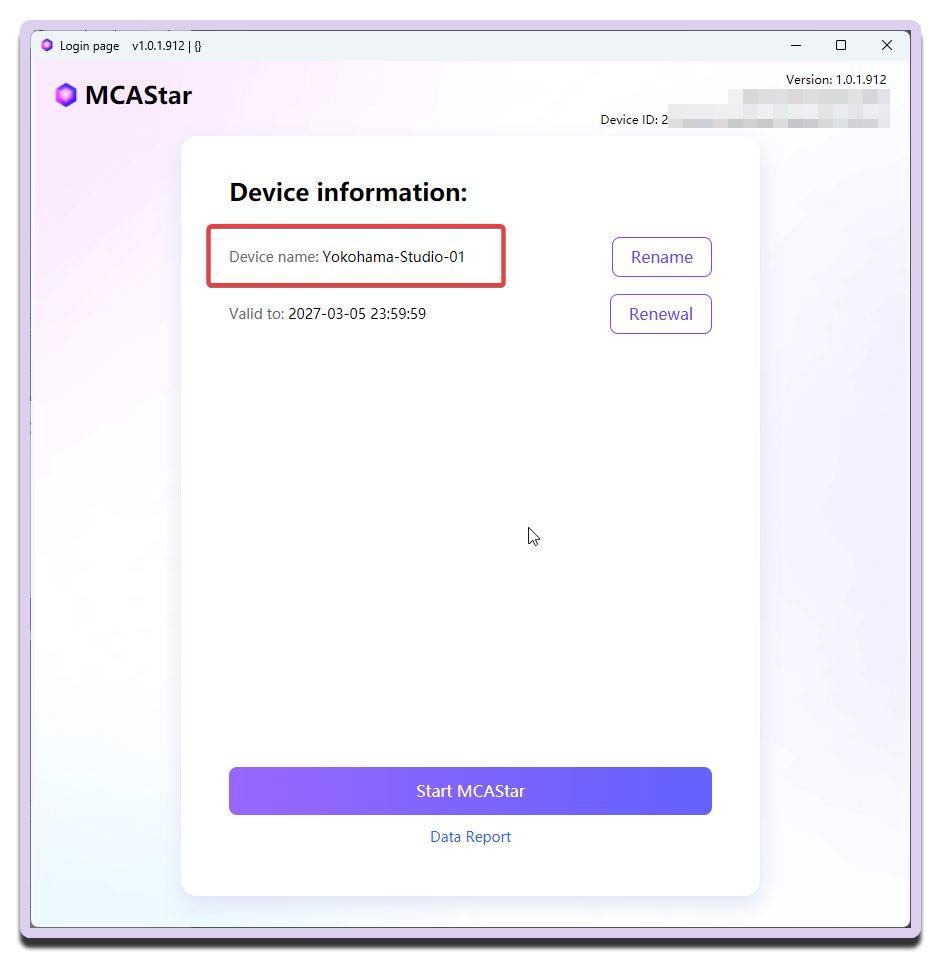
Why not use the team(group) name?
A livestream room may be used by multiple teams(groups), and a specific team may also temporarily broadcast from other rooms. Because of that, we do not recommend using the team name as the device name.
Next Steps
The fastest way to get MCAStar working is shown in the Sticker Dance quickstart guide below: