Sticker Dance Mode
Sticker Dance has two sub-modes: Normal mode and Vote Recording Mode. It is suitable for showcasing cast members. Normal mode is the most basic gift-based gameplay; under Vote Recording Mode, richer settings can also support a certain level of competitive play.
- Confirm what kind of gameplay goal the current preset should achieve, or which team workflow you want to reference
- Confirm that all cast members and their representative gifts have been configured correctly
- Fine-tune the layout, timing, interactive votes, and widget details
About This Page
We recommend first going through Sticker Dance Quickstart once. This page mainly adds more detailed explanations for the mode.
If you are not sure what a setting means, search this page first. It covers all configuration items related to this mode.
Normal mode
Normal mode is suitable for regular showcase-style Sticker Dance. The focus is on clearly displaying the cast members, gameplay gifts, and widget layout, without vote counting.
If you only want viewers to see the cast members and gameplay gifts, or if this is your first time building a Sticker Dance preset, start with this mode first. Get the layout, cast, and gameplay gifts working, then decide whether to upgrade to a vote-counting setup.
Vote Recording Mode
Vote Recording Mode is suitable for vote-counting Sticker Dance. It is often used together with settings such as RT (s) and Decay Mechanism, converting viewer gifts, comments, and likes into votes that drive the gameplay flow.
During setup, it is best to review countdown, decay, and interactive vote settings together in one pass, so the rules stay consistent during the livestream.
Useful Trick
If you want to run an original gameplay format in the live room that MCAStar does not provide as a built-in mode, you can enable the Vote Recording Mode sub-mode and hide the MCA widget in your broadcast tool.
In that case, MCAStar still records all audience gift data during the livestream, making later statistics and settlement easier.
INDEX
Based on the layout of the settings screen, this mode is divided into the following panels:
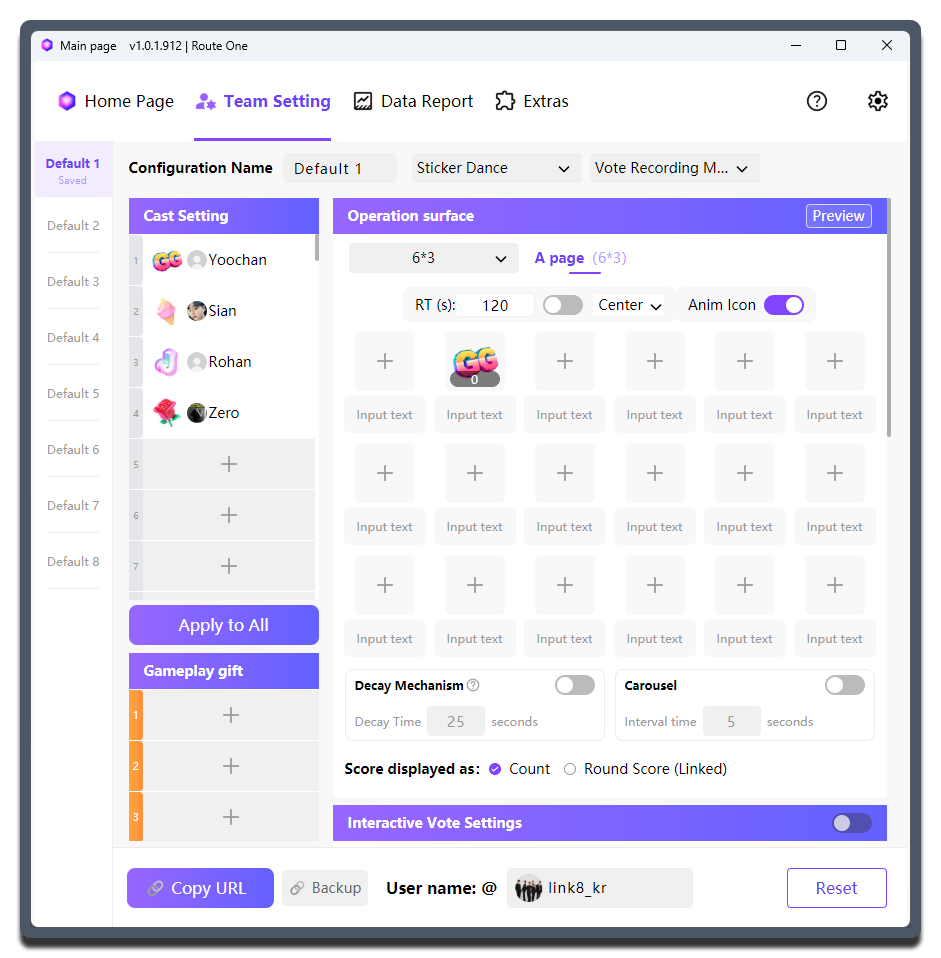
Operation surface: handles layout, paging, countdown, decay, and score displayInteractive Voting Settings: handles comment and like participation in scoringCast Setting: handles cast configurationGameplay gift: handles additional standalone gift-triggered gameplay
Operation surface
This is the main operating area of Sticker Dance. Most layout, paging, timing, decay, and score display settings are completed here.
Gift Matrix Layout
| Setting | What it does | When to change it | Notes |
|---|---|---|---|
Layout options: 8*3, 7*3, 6*3, ... |
Decides the number of cells and arrangement of the gift matrix | Adjust according to the actual number of cast members | If the screen looks shifted left or right, adjust the layout first instead of force-dragging the position in the broadcast tool |
A page / B page |
Lets you configure two separate display pages | Use when you want one page for members and another for gameplay, or one page for main info and another for supporting info | B page is shown only when used together with Carousel |
RT (s) |
Sets the countdown duration for each round | Use when the gameplay needs round pacing or vote counting | Used only in Vote Recording Mode; the related control switch must also be enabled |
Countdown position: Center, Left, Right |
Adjusts the countdown position inside the widget | Use when the center area is needed for other content | In most cases, keep Center |
Anim Icon |
Controls whether the gift sticker shows animation | For example, if the cat gift sticker is enabled, it waves when the score changes | Recommended to enable |
Input text |
Adds text below the corresponding gift sticker | Use when you need to label a group name, gameplay name, dance name, or key cell | Keep the text short; creator nicknames are usually not recommended here |
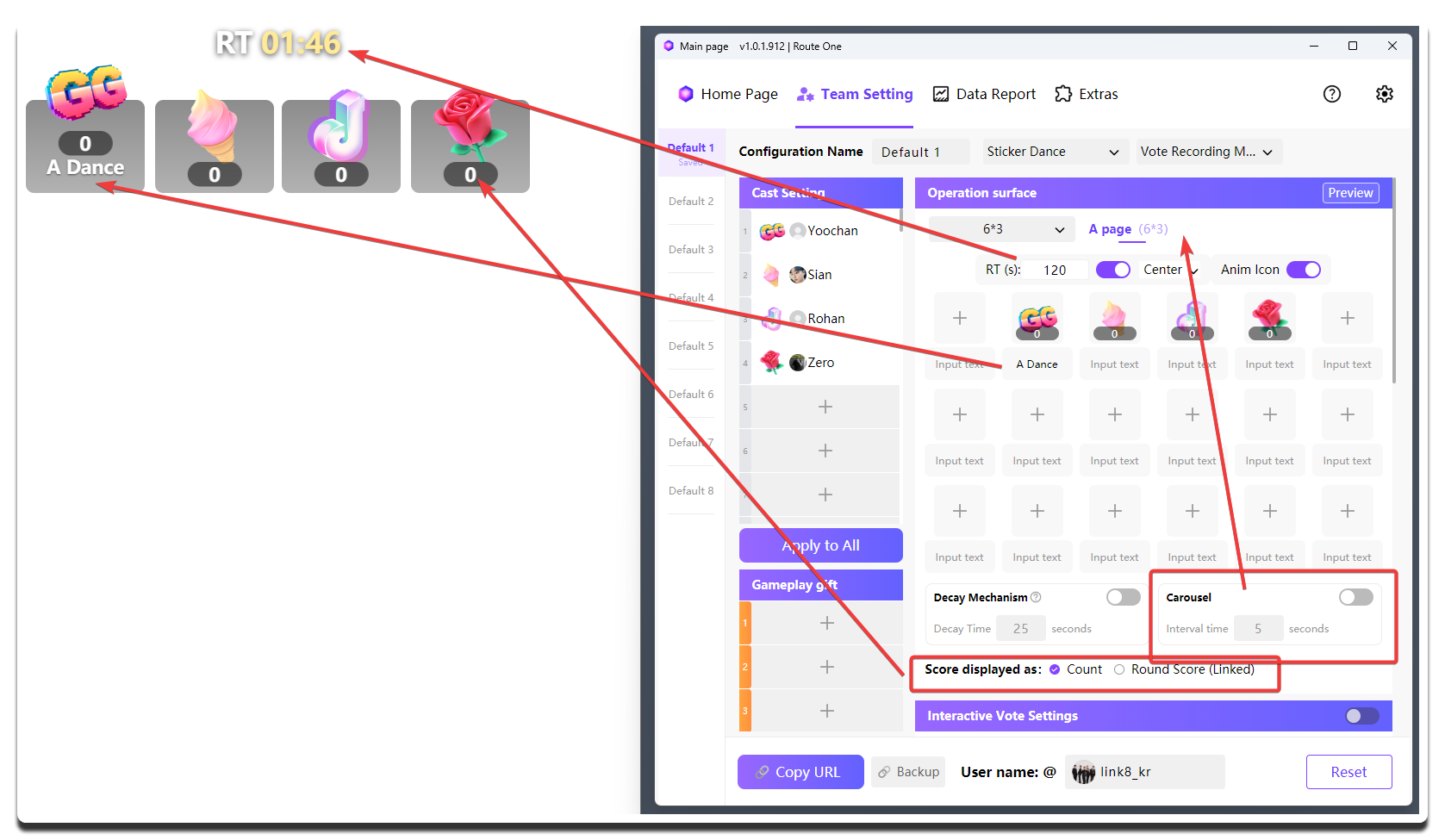
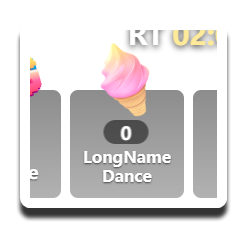
Line Breaks Are Supported
The text below each gift sticker can include line breaks by pressing Enter, but it is still best to keep the wording as concise as possible.
Gameplay Mechanism Settings
| Setting | What it does | When to change it | Notes |
|---|---|---|---|
Carousel |
Automatically flips between A page and B page |
Enable it when one page is not enough or when you want to rotate between a member page and a gameplay page | Adjust the page-switching interval with Interval time |
Decay Mechanism |
Vote decay mechanic: if no gifts are received for a period of time, the corresponding score is cleared | Enable it when you want ongoing gift pressure | Use Decay Time to set how long to wait before decay triggers; do not set it too short |
Score displayed as |
Decides the score unit shown inside the widget | Count shows gift quantity (white numbers); Round Score (Linked) shows votes (gold numbers) |
Round Score (Linked) is recommended, because 1 Gift Binding Mode can make a creator with fewer gifts still lead in score |
Display Rhythm
Gift icons usually stay on screen for about 5 seconds, while avatars stay for about 2 seconds before the rotation continues.
Interactive Voting Settings
This is useful when a new team is going live or when you want to warm up the room.
Cast Setting
Set this according to which cast members are actually on stage.
Gameplay gift
This section is used to configure special gameplay gift stickers outside of the cast setup.
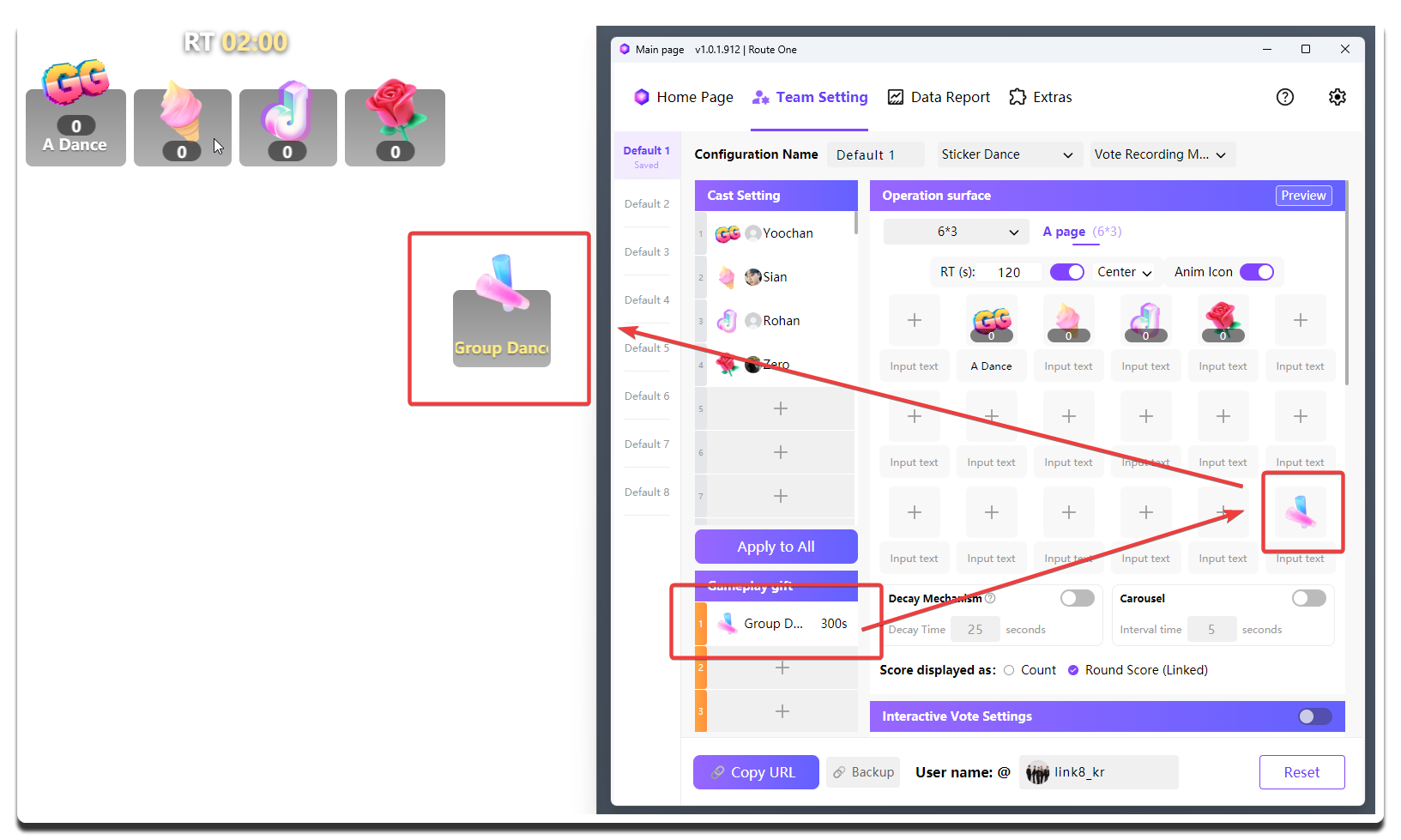
For example, you can set one gift so that when viewers send it, the full team performs a group dance. Or you can set another gift so that when viewers send it, one creator does push-ups for 30 seconds.
Its configuration logic is the same as cast gift stickers:
- First configure the
Gameplay giftlist, just like configuring theCast Settinglist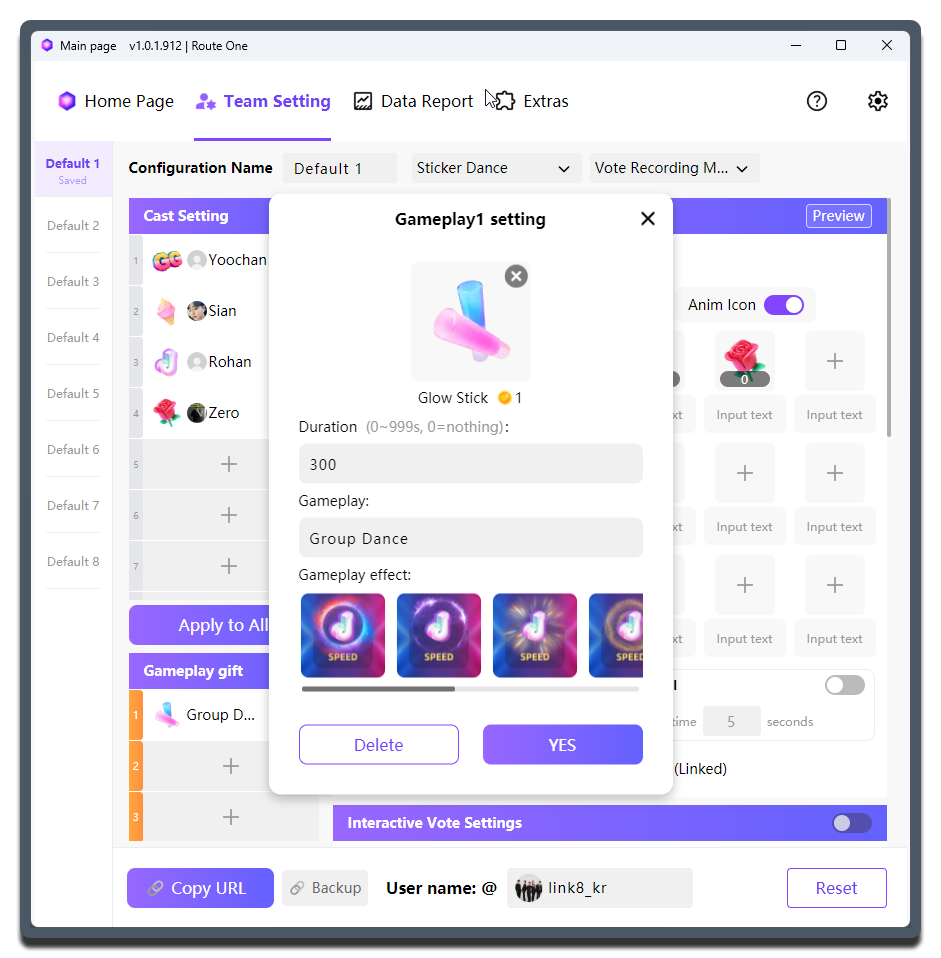
- Then choose the gift configured in the
Gameplay giftlist inside the gift matrix layout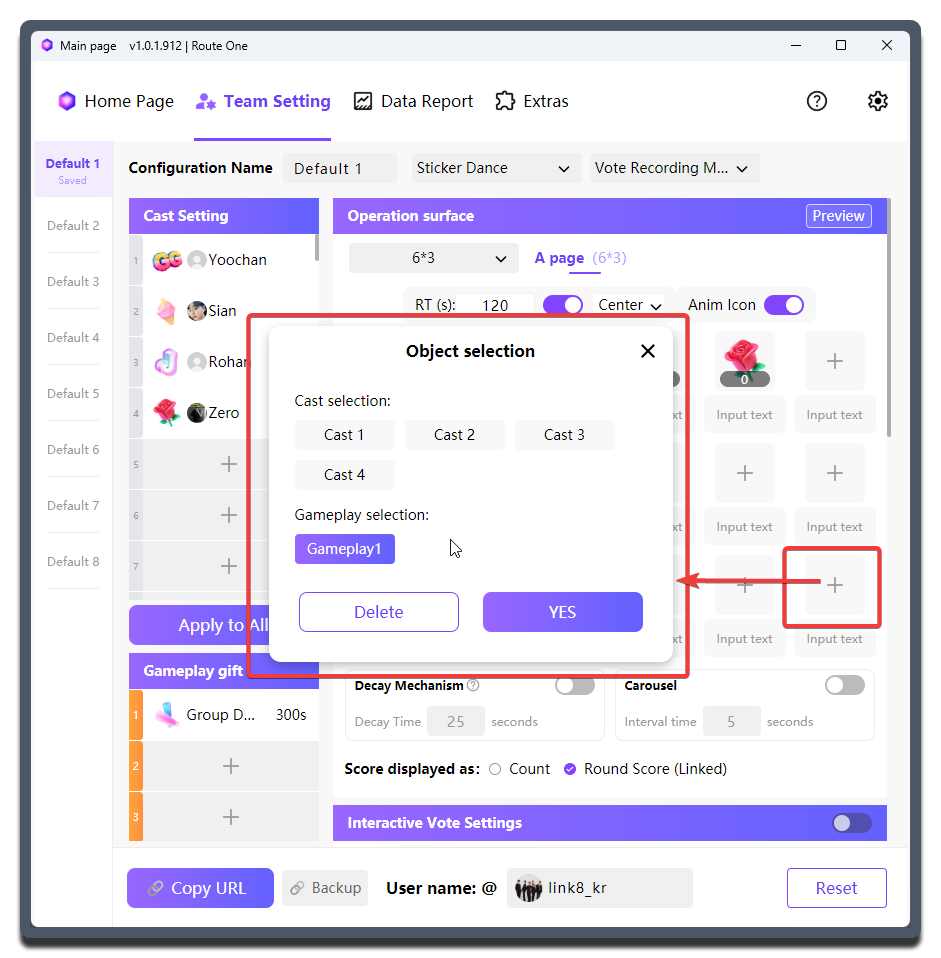
| Setting | What it does | When to change it | Notes |
|---|---|---|---|
Gift |
Binds the trigger gift for this gameplay | Set it every time you add a gameplay slot | Do not duplicate other gameplay gifts or any creator's representative gift; higher-value gifts are usually recommended |
Duration |
Decides how long the gameplay lasts after being triggered | Set this if you want a gameplay countdown to appear after viewers send the corresponding gift | Keeping it at 0 means the gameplay countdown is disabled |
Gameplay Name |
Displays the name of this gameplay | Important to adjust carefully | Keep it short and clear, and make sure it complies with platform rules |
Gameplay Effect |
Chooses the visual effect when the gameplay is triggered | Similar to the Anim Icon function of cast gift stickers |
- |
Usage Notes
Because of the 1 Gift Binding Mode mechanism, when a viewer sends a special gameplay gift, it may also add score to a specific creator at the same time.
So think carefully about whether you want to allow that behavior.
A compromise is to put special gameplay gifts into a separate preset, and use only that preset's widget for live room display, without letting those gifts participate in any stage of personal vote counting.