
MCA CMS Reports
MCA CMS Reports provides graphical live-streaming data analytics. View diamond revenue, creator performance, and mode breakdowns by Room, with support for auto-adjustment of unallocated diamonds and data sharing.
Report data is not real-time!
After a data collection session completes, it may take 10 minutes to several hours for the data to appear in the reports.
Key point: Data sharing best practice
Recommended workflow: The administrator who holds the MCA CMS account manages all devices centrally, and shares each group's data report permissions with the corresponding group's operations manager. The operations manager logs into MCA CMS with their own MCA account and can view the authorized group's report data in Share With Me, without needing access to device management.
- One group's data can be shared with multiple people simultaneously (e.g., the operations manager and an operations assistant)
- Sharing is scoped to
Sharer + Room IDas the smallest unit — no unrelated group data is exposed; sharing can be revoked at any time
Do not share your MCA account password!
For the security of your account, please do not share your MCA account password with anyone.
Accessing Reports#
- Open MCA CMS and log in
- Click
Reportsin the sidebar
Report Home#
The report home page lists all Rooms you have permission to view.
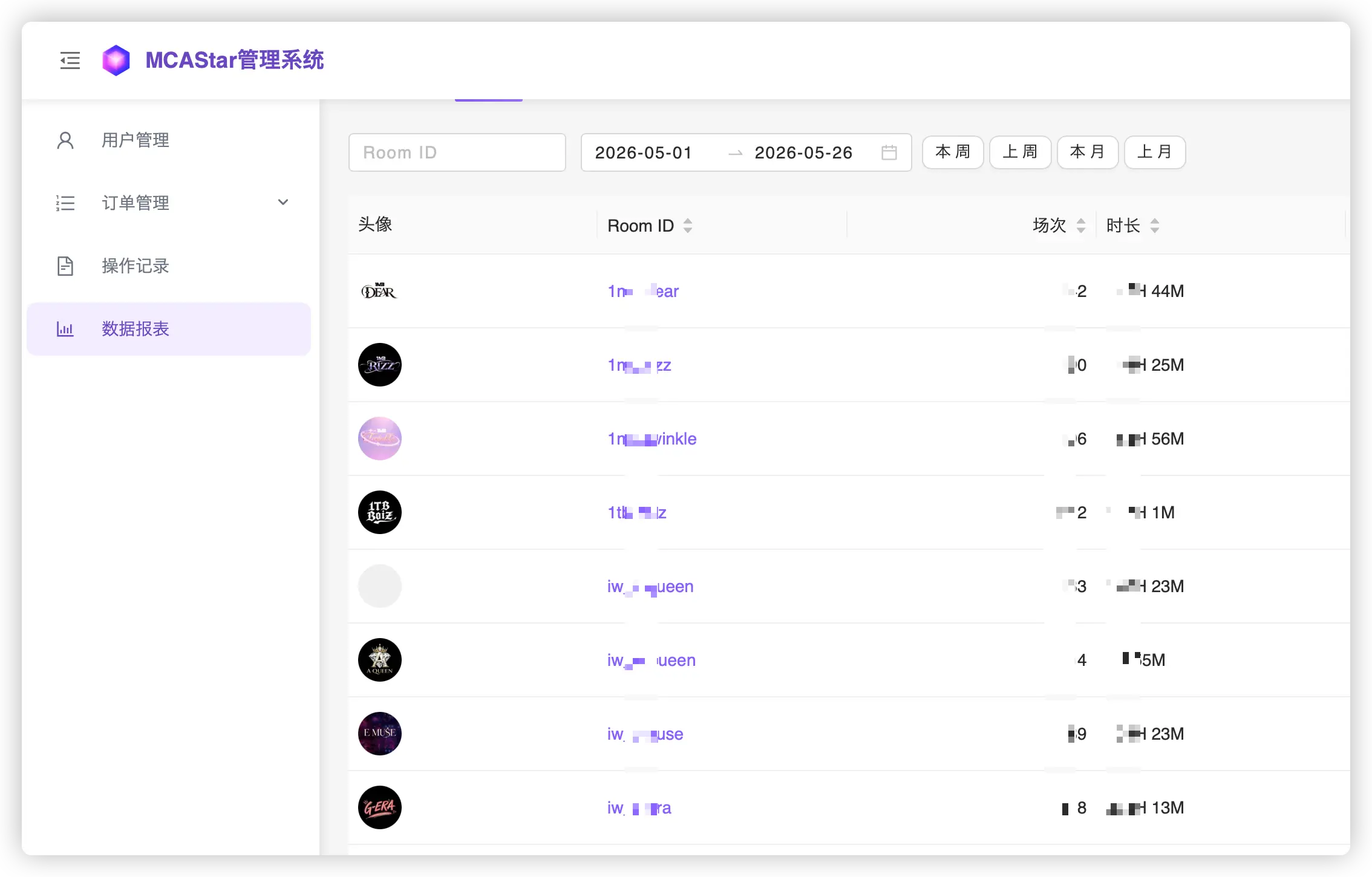
Two Data Sources#
| Tab | Function | Description |
|---|---|---|
| By My Device | MCA primary account views data here | Data collected by devices registered to your MCA account |
| Share With Me | Shared Room operators view data here | Data shared by other MCA accounts (per Room ID) |
Column Descriptions#
| Column | Meaning | Format |
|---|---|---|
| Profile Photo | Room account avatar | - |
| Room ID | TikTok username (click to view details) | - |
| Records | Adjusted session count | Integer |
| Duration | Adjusted total duration | 1,024H 30M |
| Diamonds | Adjusted total diamonds | 999 / 1.2K / 1.5M |
About diamond formatting
Diamond values displayed on the page are formatted (K = thousand, M = million), but exported Excel files contain precise raw values without any loss of precision.
Data Sharing#
Data sharing lets you share report access for a Room with other MCA users. This is the most important collaboration mechanism in MCA CMS Reports.
How to Share#
- In the
By My Devicelist, find the Room you want to share - Click the
Sharebutton on the right side of the row to open the Share Management panel - Enter the recipient's MCA login email in the
MCA Accountfield - Click
Shareand confirm to complete the sharing
After sharing, the recipient can log into MCA CMS and see the Room's data in the Share With Me tab.
Managing Existing Shares#
The Share Management panel lists all accounts that currently have access to the Room:
| Column | Meaning |
|---|---|
| MCA Account | Shared email address |
| Sharing Start | Share creation time (UTC) |
| Action | Stop Sharing |
Click Stop Sharing and confirm to revoke access. The recipient will no longer be able to see that Room's data.
Sharing granularity
The smallest sharing unit is Sharer + Room ID. This means the recipient only gains access to data collected by your devices for that specific Room. They cannot see your other Rooms or data shared by other administrators for the same Room.
Likewise, you cannot see data collected by devices registered under other MCA accounts.
Report Details#
Click any Room ID on the home page to open that Room's report details.
The details page title format is @RoomID (source account), clearly identifying the data source.
Three Dimensions#
The details page provides three tabs, each showing data from a different perspective:
| Tab | Dimension | Key Content |
|---|---|---|
| Overall | Room data | Cumulative diamond trend, daily revenue distribution |
| Creators | Creator data | Per-creator diamond comparison and share |
| Modes | Mode data | Per-mode diamond comparison and share |
All three tabs share the date range filter and Export Excel button at the top. Data is loaded on demand when switching tabs — no duplicate requests.
Date range
MCA CMS Reports provides data from the past 2–3 months for you to browse. Older data is destroyed by the system and not retained.
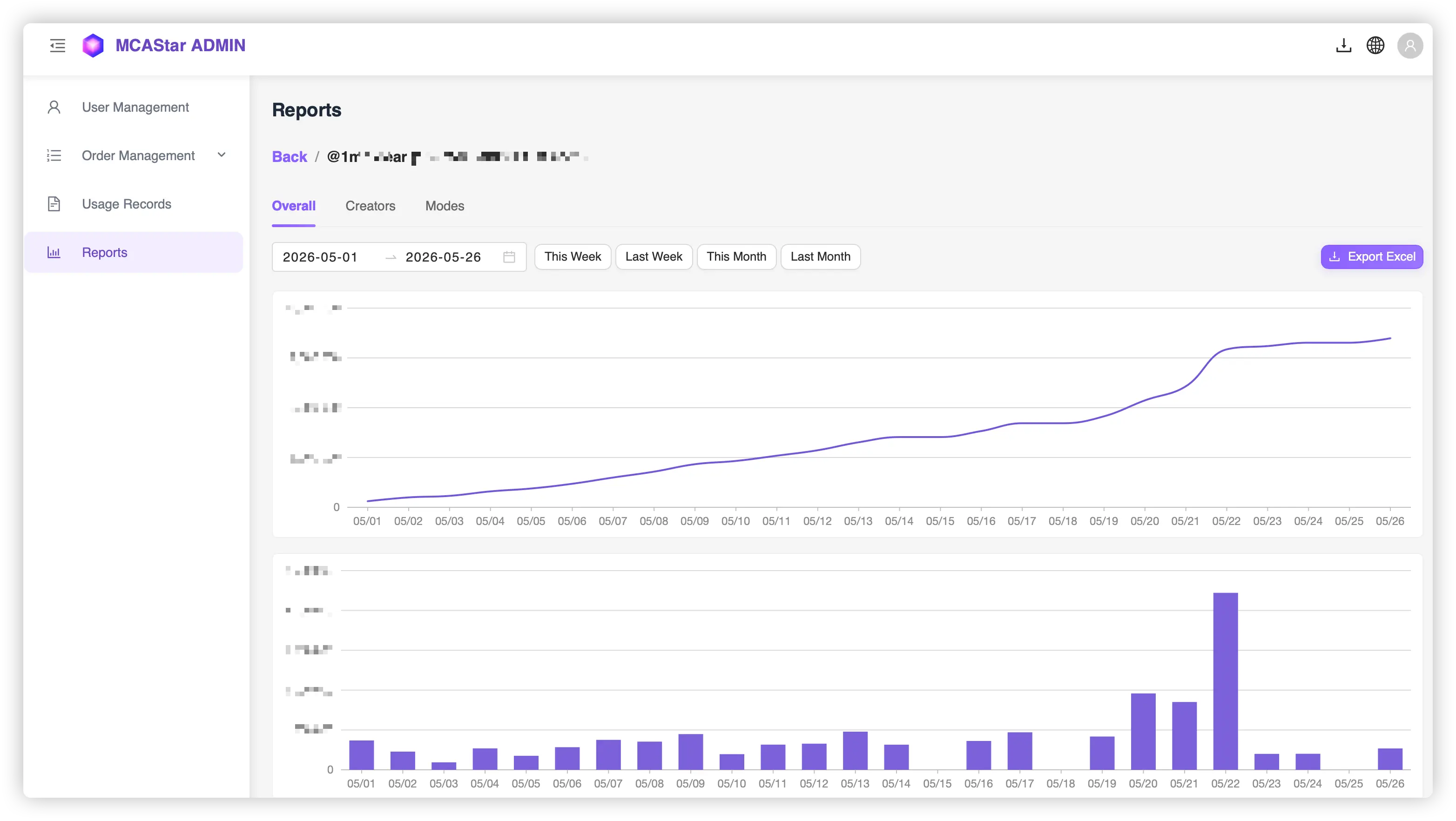
Overall — Room Data#
Charts
- Cumulative diamond line chart: Cumulative revenue trend starting from the first day of the selected date range, aggregated daily
- Daily diamond bar chart: Daily diamond revenue distribution
Both charts use date on the X-axis and diamonds on the Y-axis. Days with no data are not skipped — they show as 0.
Data Table
| Column | Meaning |
|---|---|
| Date | UTC date, click to open that day's adjustment details |
| Duration | Adjusted total duration |
| Diamonds | Adjusted total diamonds |
| Records | Session count |
| Adjustments | Adjustment detail count |
A total row is shown at the bottom.
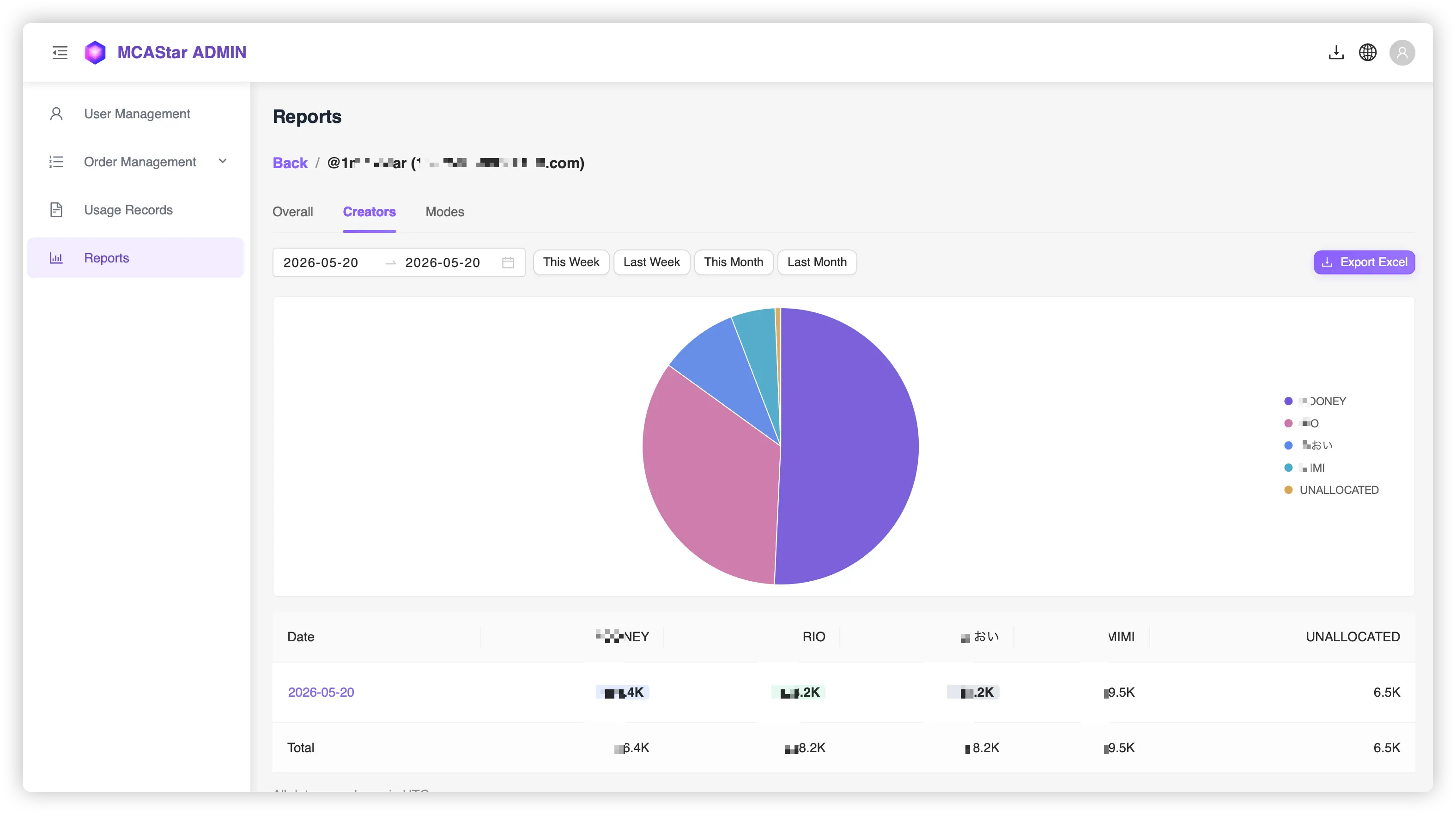
Creators — Creator Data#
Chart Rules
- Single day selected: Pie chart showing each creator's diamond share
- Multiple days selected: Line chart showing cumulative diamond trends per creator
Creators are sorted by total diamonds in descending order. Unallocated appears as a separate item, fixed at the end.
Click legends to toggle visibility
In the line chart, click a creator's name in the legend to show or hide their data line — useful when there are many creators.
- Each creator gets one column, with the creator name as the header (displayed in uppercase)
- The top 3 creators by daily diamonds are highlighted with colored backgrounds (1st blue, 2nd green, 3rd gray)
Unallocatedcolumn is not clickable — it does not open the Creator Performance modal- Other creator cells are clickable and open the Creator Performance modal
A total row is shown at the bottom.
Modes — Mode Data#
Chart Rules
- Single day selected: Pie chart
- Multiple days selected: Grouped bar chart
Modes are sorted by total diamonds in descending order. Unlike Overall and Creators, days where all modes are 0 are skipped and not displayed in charts or tables.
Mode Types
| Mode | Description |
|---|---|
| Sticker Dance | Normal mode / Vote Recording mode |
| Duel Dance | — |
| Freedom | — |
| Solo Stage | — |
| Multi PK | — |
Creator Performance#
Click a creator cell in the Creators tab to open that creator's performance modal for the selected date.
The modal title shows Creator Name - Date, with a → Next Creator Name button in the top-right corner to cycle through creators.
Detail — Gift Records#
Sorted by gift time, with infinite scroll auto-loading.
| Column | Description |
|---|---|
| Time | Gift time (UTC). Times past 24:00 display as 25:00, 26:00, etc. (continuous hours). Local time shown in parentheses |
| Gifter | Gifter nickname, clickable to open TikTok profile |
| Gift Name / Price x Amount | Gift name, unit price and quantity |
| Diamonds | Diamond amount for this gift (exact value) |
| Mode (Round) | Mode and round number |
Color coding:
- Time shown in red: This record was manually bound in MCA (manually operated)
- Entire row shown in purple: This record was generated by the auto-adjustment feature
Top Gifter — User Rankings#
Sorted by total diamonds sent in descending order, showing the top gifters for that creator on that day.
| Column | Description |
|---|---|
| No. | Rank |
| Gifter | Gifter nickname, clickable to open TikTok profile |
| Diamonds | Total diamonds sent by this user to this creator (exact value) |
Date stays the same when switching creators
When you click the → Next Creator button in the top-right corner, the viewing date remains unchanged, making it easy to quickly compare different creators on the same day.
Data Export#
Excel export is available at multiple levels:
| Export Entry | Export Content |
|---|---|
Details page Export Excel button |
Current tab's report data (Overall / Creators / Modes) |
Creator performance modal Export Excel button |
Current tab's data (gift details or user rankings) |
Adjustment details page Export Excel button |
All sessions for the selected day |
| Per-row download button on adjustment page | Single session report |
Exported Excel files:
- All diamond values are exact (no K/M abbreviation)
- Duration uses precise time-diff format
- Gift names are in English
Export file naming
File names include the Room ID, report type, and date range for easy archiving and management.
Sessions and Adjustments#
Click a specific date in any tab on the details page to open the adjustment details for that day.
The adjustment details page uses sessions as the smallest management unit. Each live-stream recording session is treated as a whole, containing all gift records from that session.
Session List#
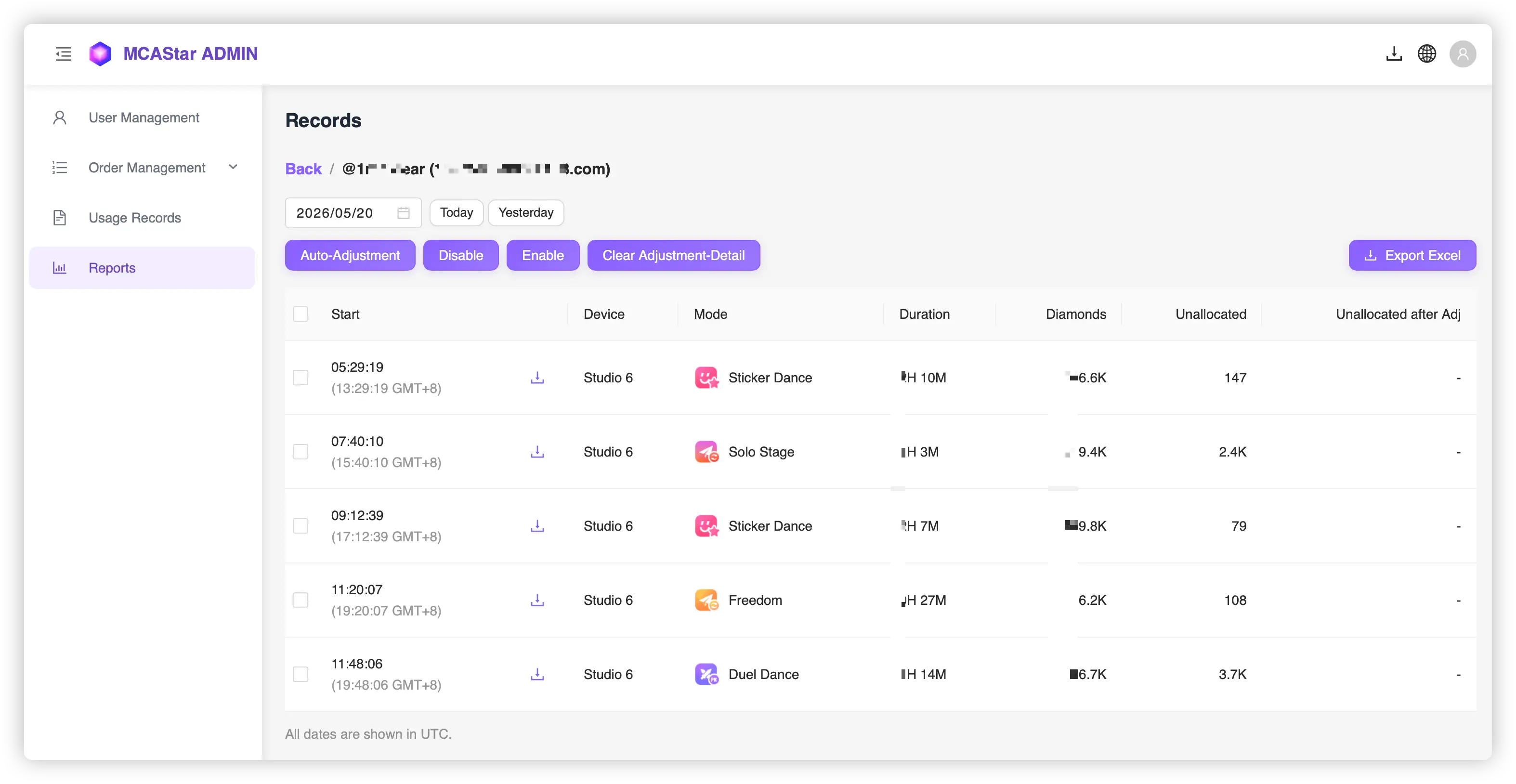
Sorted by recording start time in ascending order. Table columns:
| Column | Description |
|---|---|
| Start | Recording start time (UTC + local time), with a per-session export button |
| Device | Recording device nickname |
| Mode | Session mode |
| Duration | Duration |
| Diamonds | Diamond count |
| Unallocated | Unallocated diamonds before adjustment |
| Unallocated After Adj | Unallocated diamonds after adjustment, clickable to view adjustment details |
Row status indicators:
- Gray text: This session is disabled and excluded from report calculations
- Red text: This session has a conflict (multiple devices under the same user recorded the same Room simultaneously)
Operations#
Select one or more sessions by clicking rows or checkboxes, then perform the following operations:
Good news: All operations are reversible — you won't accidentally delete any important data.
Disable#
Exclude the session from report calculations. Use cases:
- When the same Room is recorded by multiple devices, block duplicate recordings
Enable#
Re-include a previously disabled session in report calculations.
Clear Adjustment-Detail#
Delete adjustment details for selected sessions, reverting to the unadjusted state.
Auto-Adjustment#
Automatically distribute unallocated diamonds to creators based on the selected algorithm.
Auto-Adjustment#
Auto-adjustment handles unallocated diamonds that occur when a gifter sends a gift at the wrong time, so the gift is not automatically bound to a specific mode or creator. Since MCs can't manually assign every gift during a fast-paced broadcast, auto-adjustment handles this in bulk.
When to use auto-adjustment
When you use MCA data as the basis for creator performance evaluation and need to handle attribution of certain gifts after the live stream ends. Auto-adjustment can solve 80% of the problem, saving you significant time.
Steps#
- Select the sessions you want to adjust in the session list
- Click the
Auto-Adjustmentbutton - Choose adjustment methods in the popup (multiple selection allowed)
- Click
Auto-Adjustmentto execute
Each auto-adjustment execution overwrites the previous adjustment results.
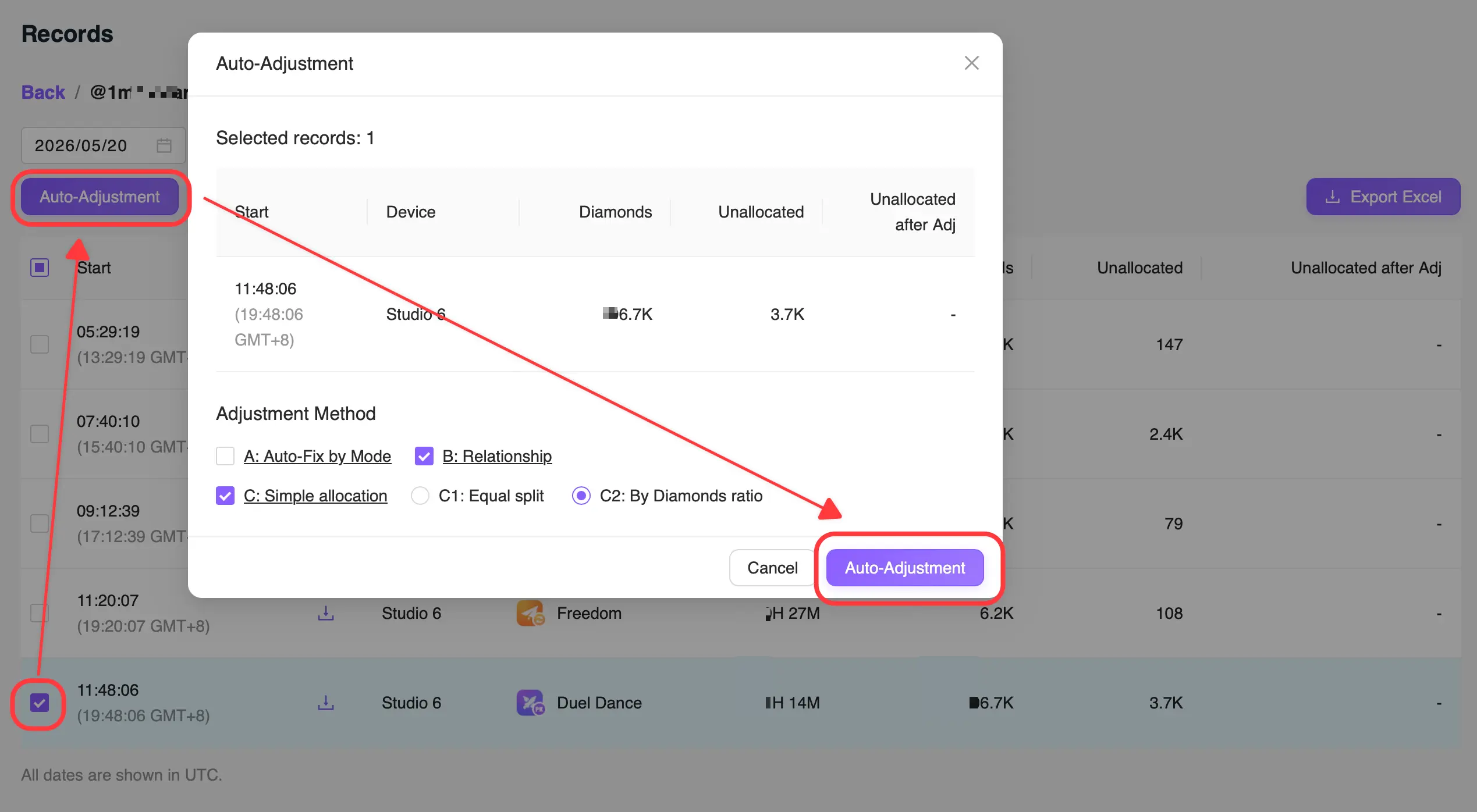
Three Adjustment Methods#
Method A — Fix by Mode
Processes each unallocated record in chronological order. For each unallocated record, checks whether bound gift records exist within 60 seconds before or after:
- If within 60 seconds before, the same gifter has a bound record for a creator → treat it as a gift that was not auto-bound because of timing, and fix attribution
- If within 60 seconds after, the same gifter has a bound record for a creator → "sent early", fix attribution
- If both exist and point to the same creator → fix attribution
- All other cases → skip, keep unallocated
Method B — Relationship
Calculates gifter-creator relationships per session:
- Find gifters who sent more than 1,000 diamonds in the session
- If a gifter sent 85%+ of their diamonds to a single creator → a relationship is identified
- All unallocated records from that gifter are attributed to the related creator
Method C — Simple Allocation
Distributes unallocated diamonds among creators who earned diamonds. Two sub-options (choose one):
| Option | Method | Description |
|---|---|---|
| C1 | Equal split | Total unallocated ÷ number of creators with earnings, rounded down |
| C2 | By diamond ratio | Distribute based on each creator's diamond share, rounded down |
After simple allocation, a small remainder may stay unallocated due to indivisible amounts — this is normal.
Combining Methods#
You can select multiple methods simultaneously. Regardless of selection order, the system always executes in A → B → C order.
Method selection tips
- Choose a consistent allocation scheme based on your MCN's management rules (diamond performance allocation rules)
- Recommended option 1: A + B
- Recommended option 2: B + C2
- Recommended option 3: C1
- If unsure, try A + B — generally the most effective combination
Method memory
The system remembers your last selected adjustment method per Room ID. Next time you adjust sessions for that Room, it automatically pre-fills your previous choices.
Viewing Adjustment Details#
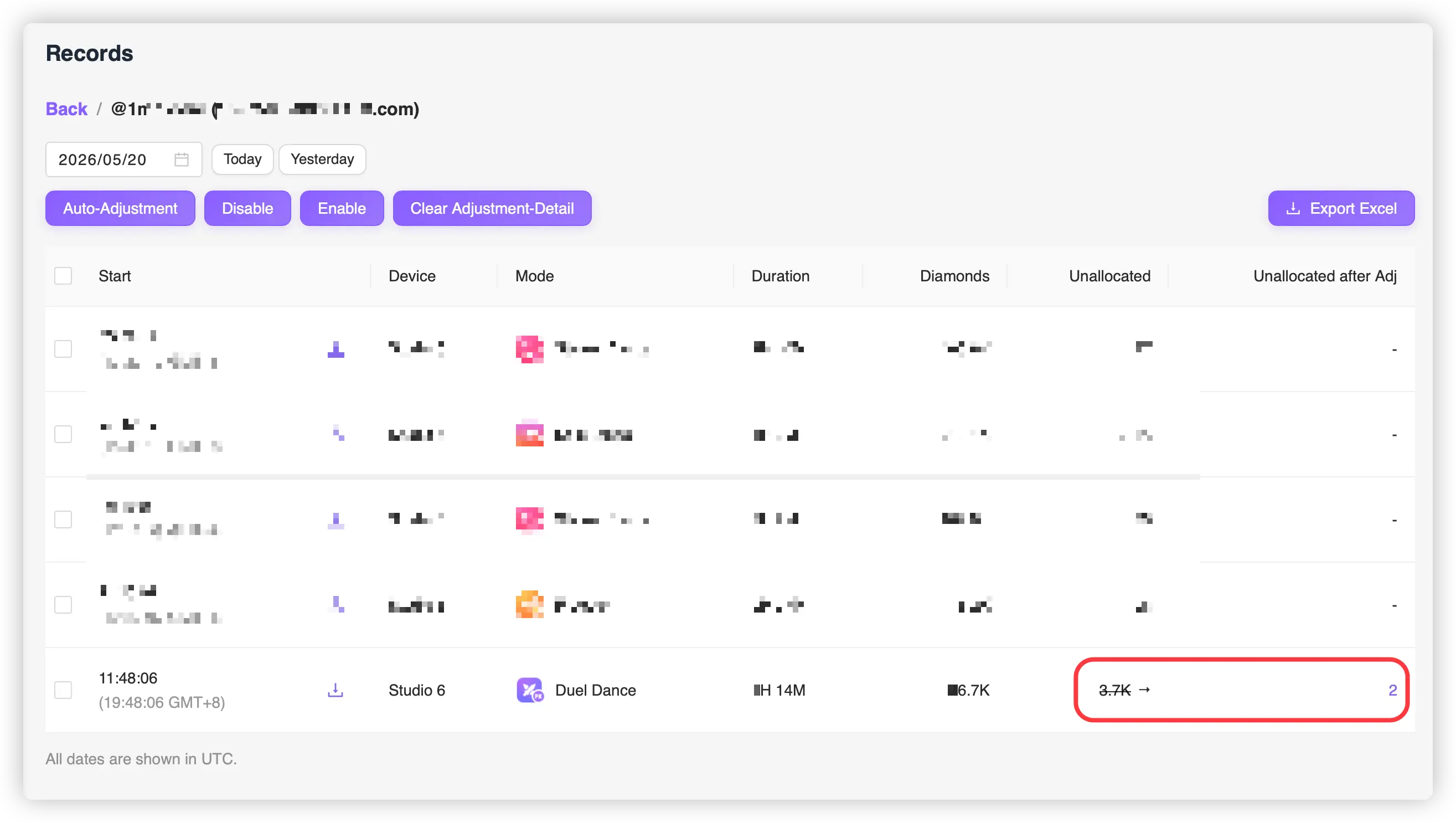
In the session list, click a value in the Unallocated After Adj column to view detailed adjustment records for that session:
| Column | Description |
|---|---|
| Adj-to-creator | Creator who received the adjustment |
| Adj-Diamond-amount | Adjusted diamond amount |
| Adj-method | Adjustment method used (A / B / C1 / C2) |
| Time point | When the adjustment occurred |
| Gifter nickname | Gifter's nickname |
| Gift | Gift name |
| Amount | Gift quantity |
| Gift unit price | Gift unit price |
About Time#
All times and dates in the reports use UTC. Local time is displayed as a supplement (based on your browser's timezone), formatted as HH:mm:ss (HH:mm:ss GMT+n).
Key rules:
- Each session is assigned to a day based on its recording start time, not by gift send time — sessions are not split across days
- In the creator performance modal, times past 24:00 are displayed as 25:00, 26:00, etc. (continuous hours), because a single session should not be split across two days
About creator nicknames
Creator nicknames are case-insensitive. They are displayed in uppercase on the page (e.g., james, James, jaMes all display as JAMES). When calculating statistics, data from the same creator with different capitalization is merged.