
Sticker Dance Mode
Sticker Dance has three sub-modes: Normal mode, Vote Recording Mode, and Team mode. It is suitable for showcasing cast members. Normal mode is the most basic gift-based gameplay; under Vote Recording Mode, richer settings can also support a certain level of competitive play; Team mode splits the cast into multiple teams, making it suitable for multi-team group matchups.
- Confirm what kind of gameplay goal the current preset should achieve, or which team workflow you want to reference
- Confirm that all cast members and their representative gifts have been configured correctly
- Fine-tune the layout, timing, interactive votes, and widget details
About This Page
We recommend first going through Sticker Dance Quickstart once. This page mainly adds more detailed explanations for the mode.
If you are not sure what a setting means, search this page first. It covers all configuration items related to this mode.
Normal mode#
Normal mode is suitable for regular showcase-style Sticker Dance. The focus is on clearly displaying the cast members, gameplay gifts, and widget layout, without vote counting.
If you only want viewers to see the cast members and gameplay gifts, or if this is your first time building a Sticker Dance preset, start with this mode first. Get the layout, cast, and gameplay gifts working, then decide whether to upgrade to a vote-counting setup.
Vote Recording Mode#
Vote Recording Mode is suitable for vote-counting Sticker Dance. It is often used together with settings such as RT (s) and Decay Mechanism, converting viewer gifts, comments, and likes into votes that drive the gameplay flow.
During setup, it is best to review countdown, decay, and interactive vote settings together in one pass, so the rules stay consistent during the livestream.
Useful Trick
If you want to run an original gameplay format in the live room that MCAStar does not provide as a built-in mode, you can enable the Vote Recording Mode sub-mode and hide the MCA widget in your broadcast tool.
In that case, MCAStar still records all audience gift data during the livestream, making later statistics and settlement easier.
Team mode#
Team mode is suited for multi-team Sticker Dance matchups: split the cast into 2–4 teams, each with its own color and team name. In the widget, members are grouped and displayed by team, which works well for red-vs-blue showdowns, group PKs, and similar scenarios.
Team mode also supports the RT (s) countdown and additionally provides a standalone Team Ranking widget for displaying each team's total score ranking separately.
When to use Team mode
When you want several squads to compete directly on total score (rather than ranking individual streamers), Team mode is a better fit than Vote Recording Mode. If it is just a vote-counting matchup between individuals, keep using Vote Recording Mode.
Teams and Layout#
Under Team mode, the layout choices in the gift matrix layout area change from the original 8*3, 7*3 into two dropdowns:
| Setting | What it does | When to change it | Notes |
|---|---|---|---|
Number of Teams |
Decides how many teams the cast is split into | Adjust based on the actual number of people in each group | Options: 2 / 3 / 4; default 4 |
Columns per Team |
Decides how many columns each team displays | Increase when a team has too many members to fit in one row | Constrained by Number of Teams: 2 teams allow 1–4 columns, 3 teams allow 1–3 columns, 4 teams allow 1–2 columns |
| Team color bar + team name | Marks each team's color and name | Set when you want viewers to tell teams apart at a glance | Team names can be up to 20 characters; leaving it blank hides the team name and that team's layout shifts up automatically |
Paging under Team mode
Team mode no longer uses A page / B page; all teams are displayed grouped within a single page.
Anim Icon and Display#
| Setting | What it does | When to change it | Notes |
|---|---|---|---|
Anim Icon Display |
Decides which teams' gift stickers show the animation background | Adjust when you want to highlight the leading team or everyone | Options: Leading Team Top1, Each Team Top1, Leading Team All; default Leading Team All |
Hide PK Bar |
Hides the PK progress bar between teams | Enable when the PK bar feels distracting on screen | - |
Hiding the score also disables the effects
When you temporarily hide the score under Team mode, the Anim Icon Display animations and background frames are turned off together, rather than only masking the numbers.
Team Ranking Widget#
The Team Ranking is a standalone widget used to display the total-score ranking of each team. Its configuration is the same as the regular Ranking Widget:
| Setting | What it does | When to change it | Notes |
|---|---|---|---|
| Toggle | Enables or disables the Team Ranking widget | Turn on when you need to display team total scores separately in the livestream | Enabled by default when creating a new preset |
Widget Name |
Sets the title shown at the top of the ranking | Change it when you want viewers to understand what this ranking is about | A short title is recommended |
Copy URL |
Copies the Team Ranking widget URL | Use it to add the widget to your broadcast tool after configuration is confirmed | The Team Ranking is a standalone widget and its link must be copied separately |
| Display Content (Nickname / Score) | Chooses which pieces of information each row shows | Adjust when you want to streamline or supplement the ranking info | - |
| Avatar Size | Sets the avatar size in the ranking | Adjust when you want avatars to be more prominent or more compact | Options: None / Small / Large |
INDEX#
Based on the layout of the settings screen, this mode is divided into the following panels:
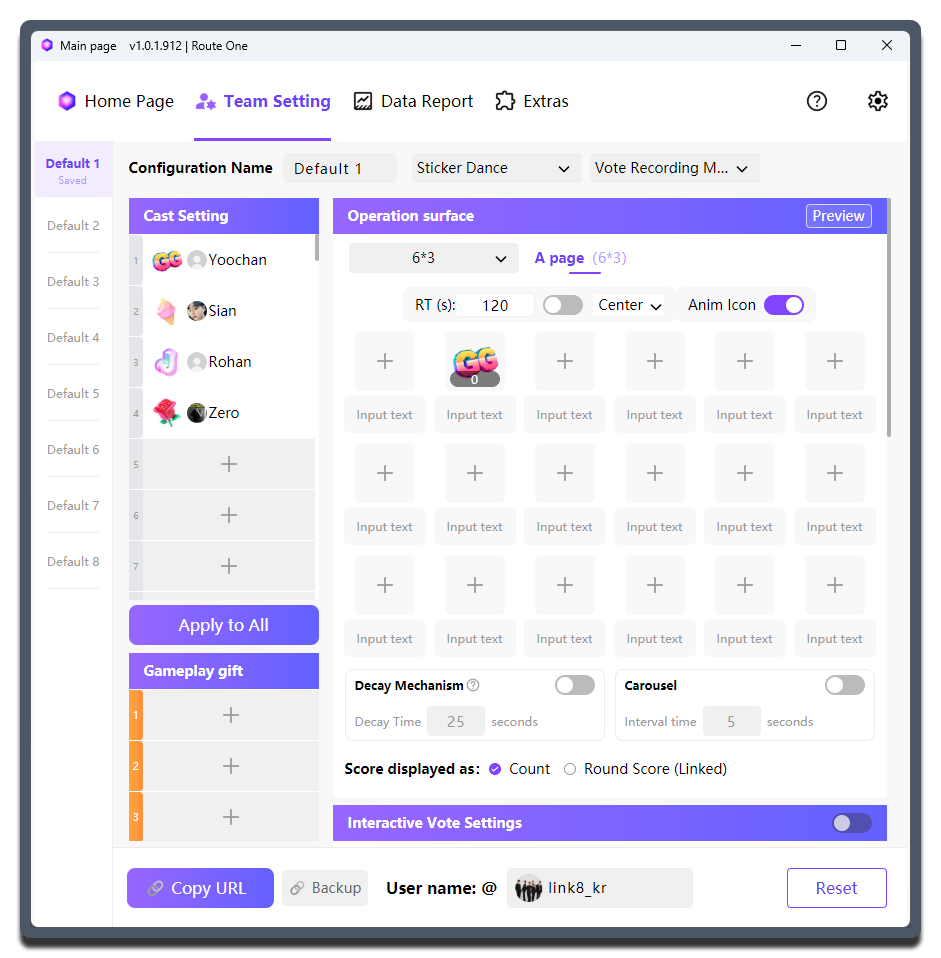
Operation surface: handles layout, paging, countdown, decay, and score displayInteractive Voting Settings: handles comment and like participation in scoringCast Setting: handles cast configurationGameplay gift: handles additional standalone gift-triggered gameplay
Operation surface#
This is the main operating area of Sticker Dance. Most layout, paging, timing, decay, and score display settings are completed here.
Gift Matrix Layout#
| Setting | What it does | When to change it | Notes |
|---|---|---|---|
Layout options: 8*3, 7*3, 6*3, ... |
Decides the number of cells and arrangement of the gift matrix | Adjust according to the actual number of cast members | If the screen looks shifted left or right, adjust the layout first instead of force-dragging the position in the broadcast tool |
A page / B page |
Lets you configure two separate display pages | Use when you want one page for members and another for gameplay, or one page for main info and another for supporting info | B page is shown only when used together with Carousel |
RT (s) |
Sets the countdown duration for each round | Use when the gameplay needs round pacing or vote counting | Used only in Vote Recording Mode; the related control switch must also be enabled |
Countdown position: Center, Left, Right |
Adjusts the countdown position inside the widget | Use when the center area is needed for other content | In most cases, keep Center |
Anim Icon |
Controls whether the gift sticker shows animation | For example, if the cat gift sticker is enabled, it waves when the score changes | Recommended to enable |
Input text |
Adds text below the corresponding gift sticker | Use when you need to label a group name, gameplay name, dance name, or key cell | Keep the text short; creator nicknames are usually not recommended here |
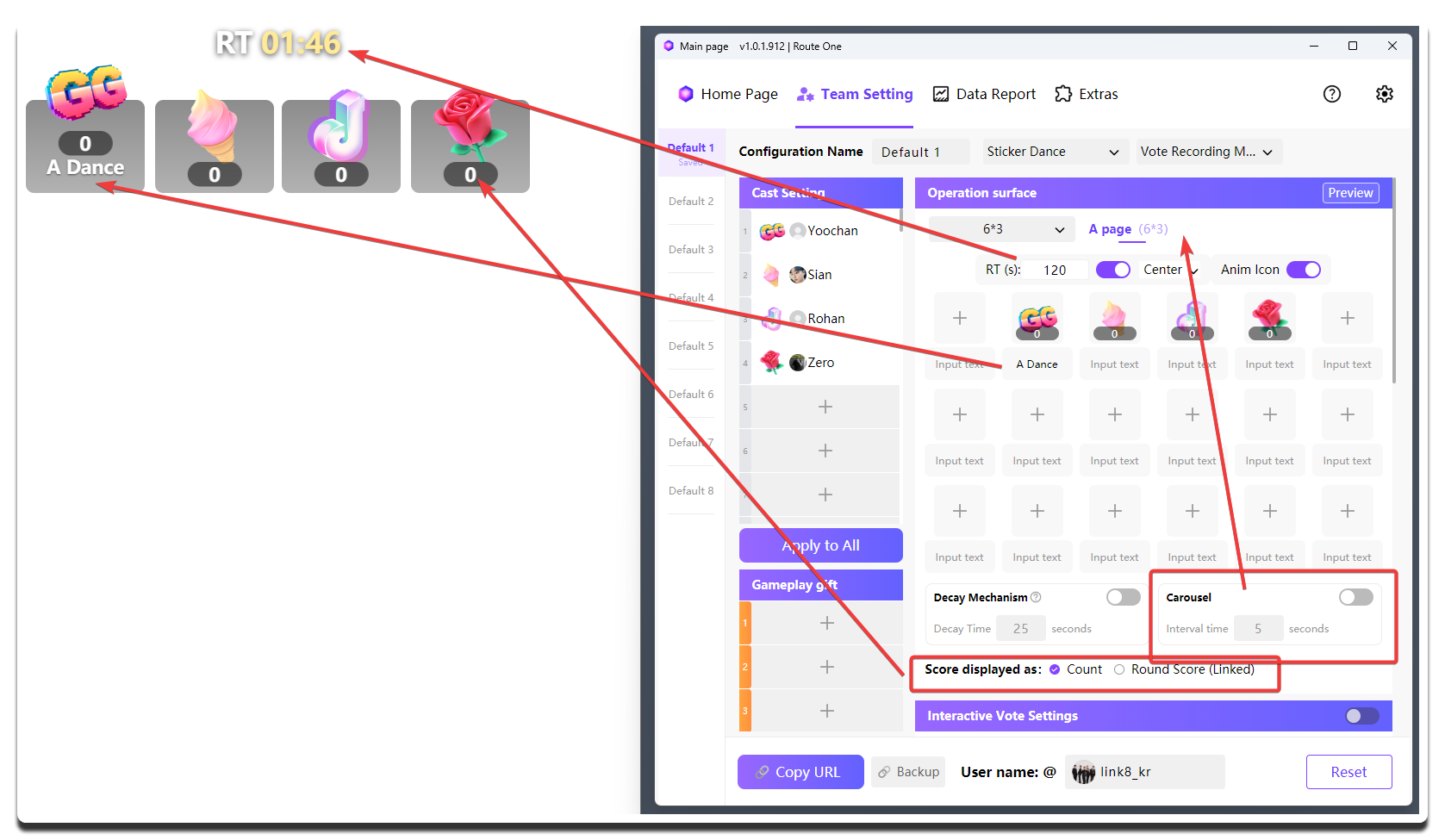
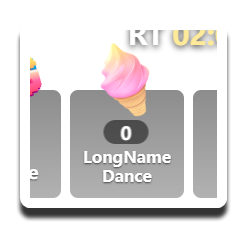
Line Breaks Are Supported
The text below each gift sticker can include line breaks by pressing Enter, but it is still best to keep the wording as concise as possible.
Drag to Swap Positions
In the gift matrix layout area, you can directly drag cells to swap the cast config of two positions, so you can quickly adjust members' display positions in the widget without reconfiguring each one individually.
Gameplay Mechanism Settings#
| Setting | What it does | When to change it | Notes |
|---|---|---|---|
Carousel |
Automatically flips between A page and B page |
Enable it when one page is not enough or when you want to rotate between a member page and a gameplay page | Adjust the page-switching interval with Interval time |
Decay Mechanism |
Vote decay mechanic: if no gifts are received for a period of time, the corresponding score is cleared | Enable it when you want ongoing gift pressure | Use Decay Time to set how long to wait before decay triggers; do not set it too short |
Score displayed as |
Decides the score unit shown inside the widget | Count shows gift quantity (white numbers); Round Score (Linked) shows votes (gold numbers) |
Round Score (Linked) is recommended, because 1 Gift Binding Mode can make a creator with fewer gifts still lead in score |
Top Display Effect#
In the gift matrix, you can enable special display effects (highlight animations in the widget) for the top-ranked cells to visually highlight the streamers with the most votes on screen.
| Option | Purpose | When to change | Notes |
|---|---|---|---|
Top Display Effect |
Choose which ranks get special effects | When you want viewers to see who's leading | Options: Disable, Top1 ~ Top6, All |
Background frame color |
Choose the background frame color of the Top effect | Adjust when you want the highlight effect to match the live room's style | Provides 8 preset colors; takes effect only when Top Display Effect is enabled |
Disable: No special effectsTop1~Top6: Only the top 1 ~ 6 show effectsAll: All cells show effects
Display Rhythm
Gift icons usually stay on screen for about 5 seconds, while avatars stay for about 2 seconds before the rotation continues.
Interactive Voting Settings#
This is useful when a new team is going live or when you want to warm up the room.
Cast Setting#
Set this according to which cast members are actually on stage.
Gameplay gift#
This section is used to configure special gameplay gift stickers outside of the cast setup.
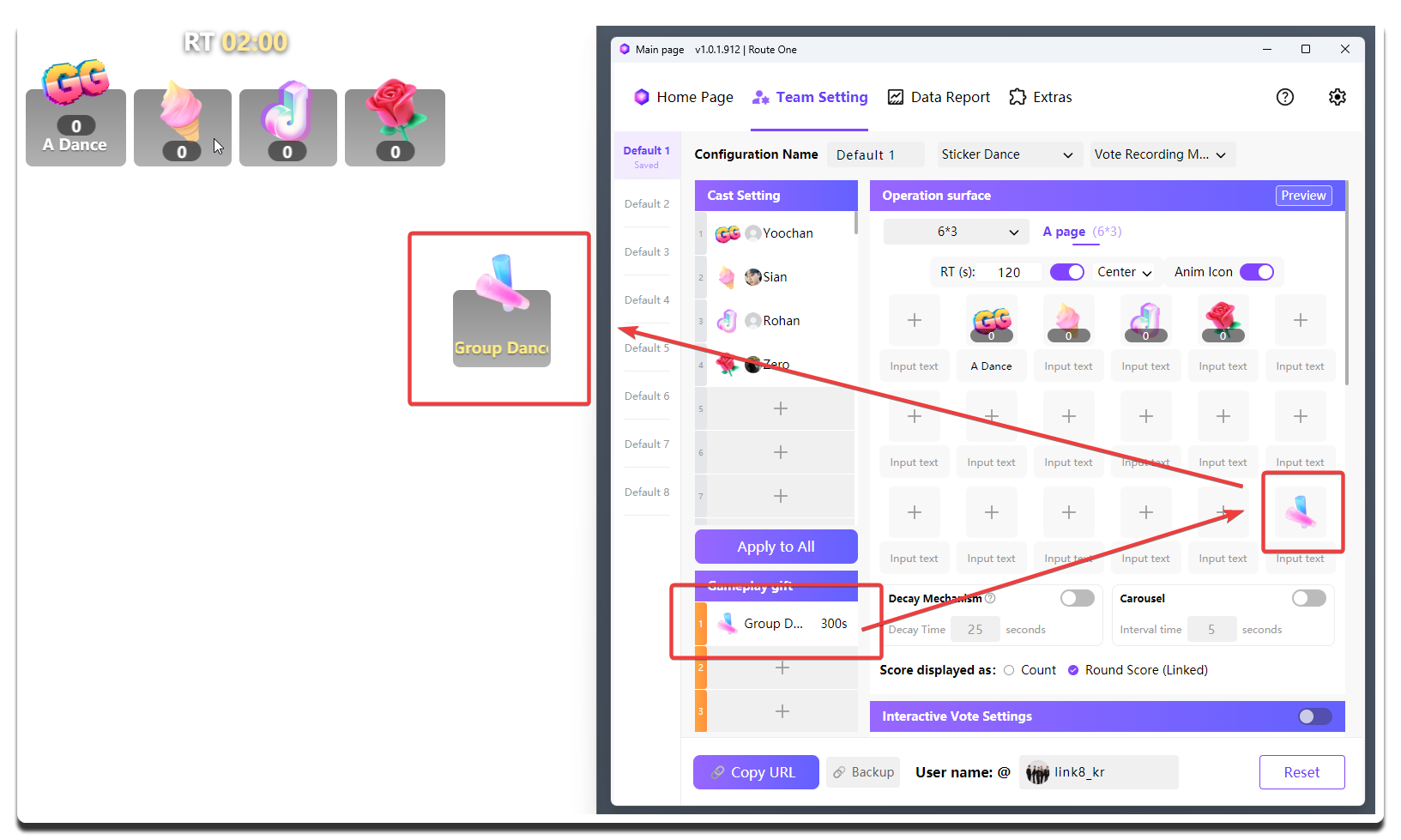
For example, you can set one gift so that when viewers send it, the full team performs a group dance. Or you can set another gift so that when viewers send it, one creator does push-ups for 30 seconds.
Its configuration logic is the same as cast gift stickers:
- First configure the
Gameplay giftlist, just like configuring theCast Settinglist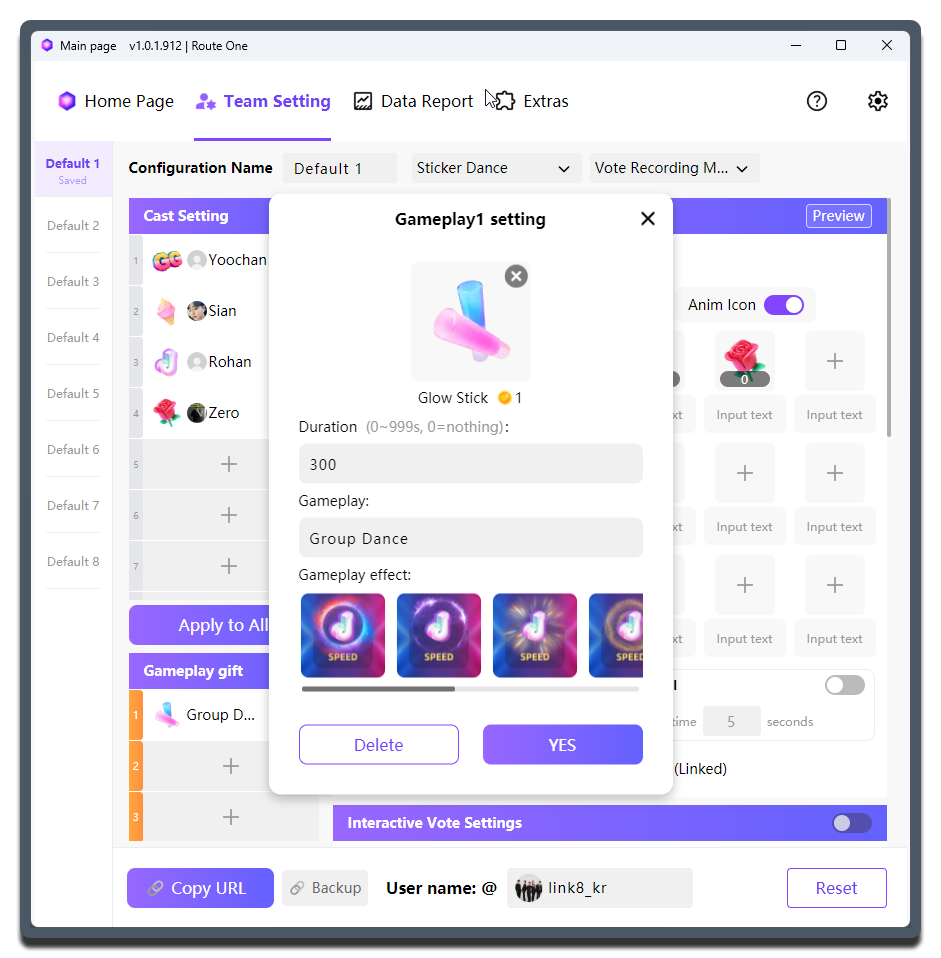
- Then choose the gift configured in the
Gameplay giftlist inside the gift matrix layout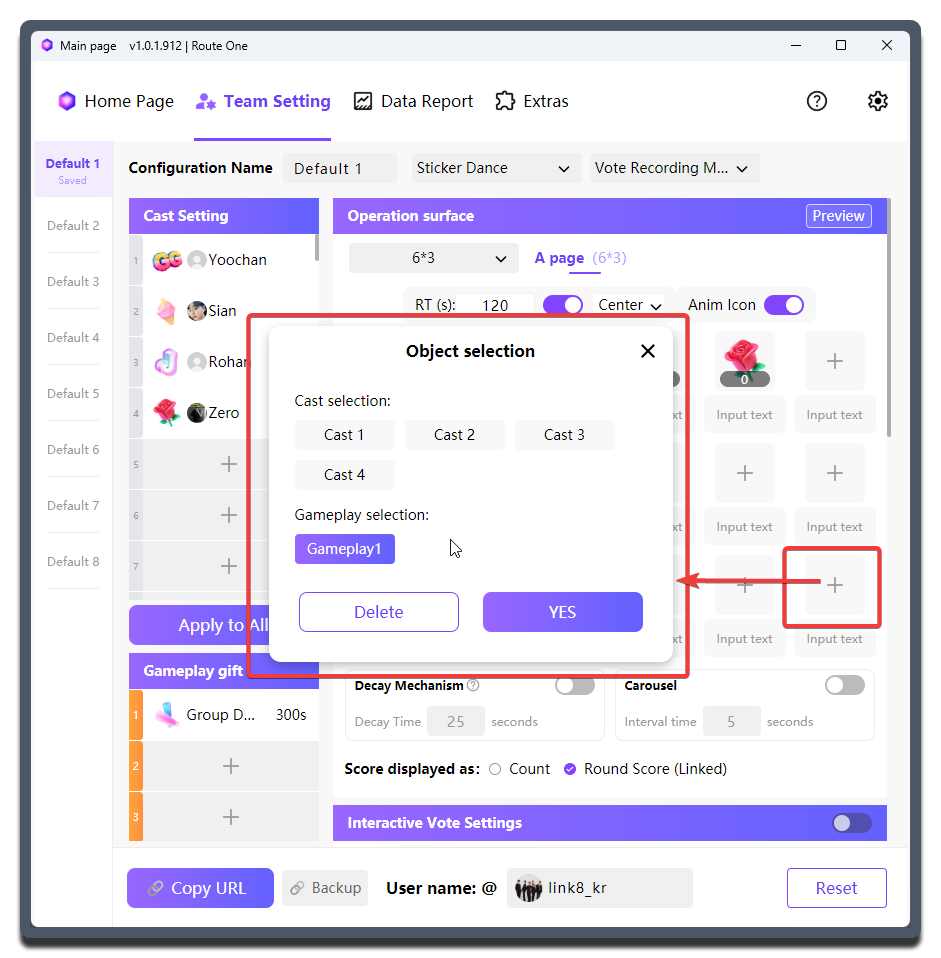
| Setting | What it does | When to change it | Notes |
|---|---|---|---|
Gift |
Binds the trigger gift for this gameplay | Set it every time you add a gameplay slot | Do not duplicate other gameplay gifts or any creator's representative gift; higher-value gifts are usually recommended |
Duration |
Decides how long the gameplay lasts after being triggered | Set this if you want a gameplay countdown to appear after viewers send the corresponding gift | Keeping it at 0 means the gameplay countdown is disabled |
Gameplay Name |
Displays the name of this gameplay | Important to adjust carefully | Keep it short and clear, and make sure it complies with platform rules |
Gameplay Effect |
Chooses the visual effect when the gameplay is triggered | Similar to the Anim Icon function of cast gift stickers |
- |
Usage Notes
Because of the 1 Gift Binding Mode mechanism, when a viewer sends a special gameplay gift, it may also add score to a specific creator at the same time.
So think carefully about whether you want to allow that behavior.
A compromise is to put special gameplay gifts into a separate preset, and use only that preset's widget for live room display, without letting those gifts participate in any stage of personal vote counting.